Computer Networks Explained: IP Addresses, Routers, DNS and Ports
Student Vocation Cybersecurity Learning Series — Lesson 3 of 30
Have you ever wondered how your laptop communicates with a website, how your phone connects to a Wi-Fi network, or how your computer knows where to send information?
The answer lies in computer networking.
Every time you browse a website, send an email, join an online class, or stream a video, your device communicates with other devices and services through a network.
For anyone who wants to learn cybersecurity, understanding computer networks is essential. Security professionals need to understand how devices communicate before they can identify suspicious traffic, troubleshoot connectivity problems, or protect systems from attacks.
In this beginner-friendly lesson, you will learn about IP addresses, routers, DNS, network ports, and the protocols that help devices communicate. You will also complete a practical networking activity using your own computer.
-
What Is a Computer Network?
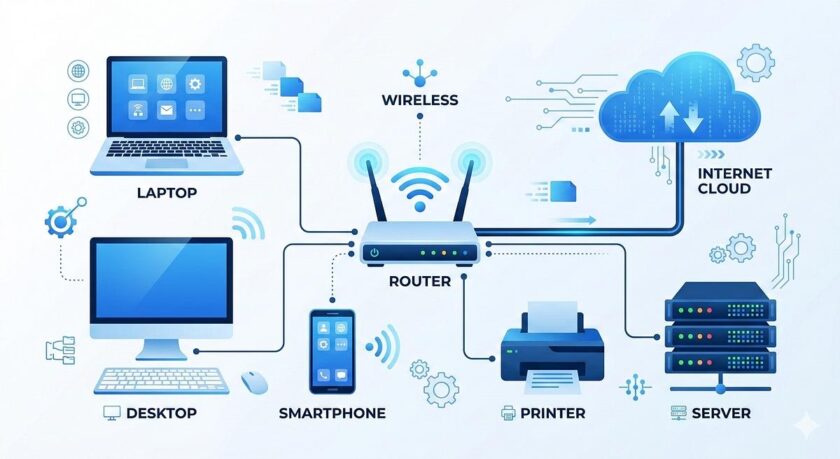
A computer network is a group of two or more devices connected so that they can exchange information or share resources.
These devices may include:
- Desktop computers and laptops.
- Smartphones and tablets.
- Printers and storage devices.
- Servers and network equipment.
- Smart devices connected to a home or business network.
For example, imagine a school computer laboratory with 20 computers connected to a network. Students may use the network to access learning resources, print documents, or connect to an authorized school server.
Networks can be small or large.
A home Wi-Fi network is a small example. A university network may connect thousands of devices. The internet connects networks across the world.
Types of computer networks
Local Area Network (LAN): A network covering a relatively small area, such as a home, office, or school laboratory.
Wide Area Network (WAN): A network that connects devices or smaller networks across a larger geographical area.
Wireless Local Area Network (WLAN): A local network that uses wireless technology, commonly Wi-Fi, to connect devices.
Personal Area Network (PAN): A network around an individual, such as a short-range Bluetooth connection between a phone and wireless headphones.
Understanding these network types helps you recognize how devices connect in different environments.
-
What Is an IP Address?
An Internet Protocol address, commonly called an IP address, is a logical network address used to identify an interface for communication using IP.
Think of sending a letter. The postal address helps direct the letter toward its destination. An IP address plays a related role in network communication, although network addressing and routing work differently from postal delivery.
Devices and network interfaces use IP addresses to help send and receive data.
There are two main versions of IP addressing: IPv4 and IPv6.
IPv4 addresses
An IPv4 address contains 32 bits and is commonly written as four decimal numbers separated by dots.
For example:
192.168.1.10
Each number represents eight bits and ranges from 0 to 255.
Other examples include:
- 192.168.1.1
- 10.0.0.5
- 172.16.0.20
These examples fall within private IPv4 address ranges commonly used inside homes, offices, and other local networks.
Private IPv4 addresses are not directly routable across the public internet. Routers commonly use Network Address Translation (NAT) to allow multiple devices using private addresses to share an external IPv4 address.
IPv6 addresses
IPv6 was developed to provide a much larger address space than IPv4.
An IPv6 address contains 128 bits and is commonly written using hexadecimal groups separated by colons.
For example:
2001:db8::10
The 2001:db8::/32 range is reserved for documentation and examples, so it is useful in learning materials without referring to a real organization’s address.
IPv6 addresses can be shortened by omitting leading zeros in groups and compressing consecutive zero groups according to IPv6 notation rules.
Public vs private IP addresses
A public IP address is an address used for communication across the public internet.
A private IPv4 address is an address used within private networks, such as a home or office network.
Common private IPv4 ranges include:
- 10.0.0.0 to 10.255.255.255
- 172.16.0.0 to 172.31.255.255
- 192.168.0.0 to 192.168.255.255
Your laptop might use a private address such as 192.168.1.25 inside your home network, while your router uses an external address for internet communication.
The exact arrangement depends on the network configuration and internet service.
Static vs dynamic IP addresses
A static IP address is configured to remain fixed, or is assigned in a way intended to keep it stable.
A dynamic IP address is assigned through a process that allows it to change over time.
Many home devices receive their private IP addresses dynamically through DHCP. DHCP is a protocol that allows network configuration information, including an IP address, to be assigned automatically.
Understanding IP addresses is important because network troubleshooting and security monitoring often involve identifying the systems communicating with one another.
-
What Is a Router?
A router is a network device that forwards IP packets between networks.
In a typical home, a router connects your local network to your internet service provider’s network.
When your laptop communicates with a destination outside its local network, it usually sends the traffic to a configured default gateway. In a typical home network, that gateway is your router.
How does a router work?
Consider this example:
Your laptop has the private IP address 192.168.1.25, and your home router has the local address 192.168.1.1.
When you visit an external website:
- Your laptop determines that the destination is outside its local network.
- It sends the traffic toward the configured default gateway.
- The router examines the destination IP address and consults its routing information.
- The router forwards the packet toward the next network.
- The traffic continues through other networks until it reaches the destination or another routing decision is needed.
The response follows the applicable network routes back toward your device.
This is a simplified example. Actual routing can involve multiple routers, firewalls, address translation, and other network services.
Router vs switch
A router and a switch have different primary roles.
A router forwards traffic between IP networks.
A network switch commonly forwards Ethernet frames within a local network, using MAC addresses to help deliver traffic to the appropriate network interface.
Some home devices combine routing, switching, Wi-Fi access, and firewall functions in a single unit.
Why routers matter in cybersecurity
Routers are important security devices because their configuration can affect which systems communicate and how traffic moves between networks.
Good security practices include:
- Changing default administrative credentials.
- Updating router firmware.
- Using modern Wi-Fi security.
- Disabling unnecessary management services.
- Reviewing network and firewall settings.
- Keeping guest devices separate from sensitive devices where appropriate.
A poorly configured router can expose a network to unnecessary risk.
-
What Is DNS?
DNS stands for Domain Name System.
DNS helps systems find information associated with domain names, including IP addresses used to reach online services.
Humans usually find names such as example.com easier to remember than numeric IP addresses. DNS provides a system for looking up information associated with those names.
How does DNS work?
Imagine that you want to visit an educational website.
- You enter the domain name into your browser.
- Your device or browser checks whether the required information is already cached.
- If necessary, a DNS resolver looks up the relevant DNS records.
- The resolver may contact other DNS servers to obtain the required information.
- The resolver returns the result to the requesting system.
- The browser can then use the resulting address to communicate with the website’s service.
This is a simplified explanation because DNS resolution can involve several caching and lookup steps.
Common DNS record types
A record: Associates a domain name with an IPv4 address.
AAAA record: Associates a domain name with an IPv6 address.
CNAME record: Provides an alias from one domain name to another domain name.
MX record: Identifies mail servers responsible for receiving email for a domain.
TXT record: Stores text information used for various purposes, including domain verification and email security configurations.
You do not need to memorize every record type immediately. Start by understanding that DNS helps systems discover information about domain names.
Is DNS a security system?
DNS is essential for internet communication, but ordinary DNS resolution does not automatically prove that a website is trustworthy.
Criminals can register deceptive domain names, and malicious websites can have valid DNS records.
DNS-related security measures can help detect or block some harmful domains, while technologies such as DNSSEC help validate the authenticity and integrity of certain DNS data. DNSSEC does not encrypt DNS queries.
Always check website addresses carefully and use trusted security practices.
-
What Are Network Ports?
An IP address helps identify a network interface or destination, but a computer can run many network services at the same time.
How does incoming network traffic reach the appropriate application?
For TCP and UDP communication, port numbers help identify the relevant application endpoint on a device.
Port numbers range from 0 to 65535.
Think of an IP address as identifying a building and a port number as identifying a particular service inside it. This is only an analogy, but it helps explain why an IP address and a port often appear together.
For example:
192.168.1.10:443
In this example:
- 192.168.1.10 is the IPv4 address.
- 443 is the port number.
The example describes a destination using port 443. It does not, by itself, prove that the service is available or that the destination is secure.
Common network ports
Port 80 — HTTP: Commonly used for unencrypted HTTP web traffic over TCP.
Port 443 — HTTPS: Commonly used for HTTPS over TCP. HTTP/3 uses QUIC over UDP, commonly on port 443.
Port 53 — DNS: Commonly used by DNS over UDP and TCP.
Port 25 — SMTP: Commonly associated with email transfer between mail servers.
Port 22 — SSH: Commonly used for secure remote administration through the Secure Shell protocol.
These are conventional assignments. A service can sometimes be configured to use a different port.
Why are ports important in cybersecurity?
Ports help security professionals understand which services are available on a device or server.
For example, an organization may expect its web server to accept web traffic but not require remote administration to be exposed to every network.
Security teams can reduce risk by limiting access to necessary services and restricting unnecessary ports through firewalls and service configuration.
An open port is not automatically a vulnerability. Its significance depends on the service, its configuration, exposure, and the organization’s security requirements.
-
What Is the Difference Between TCP and UDP?
TCP and UDP are transport protocols that applications can use to communicate over IP networks.
They offer different behavior and are suited to different needs.
TCP: Transmission Control Protocol
TCP provides a reliable, ordered byte stream between communicating applications.
It includes mechanisms for retransmitting lost data, managing delivery order, and controlling the rate of transmission.
TCP is commonly used by applications that benefit from reliable, ordered communication, including many web connections and email services.
UDP: User Datagram Protocol
UDP sends individual datagrams without providing TCP-style guarantees of reliable, ordered delivery.
Applications may choose UDP when its simpler behavior suits their needs. Some real-time applications use it to avoid the delay that can result from waiting for retransmissions.
DNS commonly uses UDP, though TCP is also used when required.
Quick comparison
| Feature | TCP | UDP |
| Communication style | Ordered byte stream | Individual datagrams |
| Delivery guarantee | Reliable delivery mechanisms | No TCP-style delivery guarantee |
| Ordering | Preserves byte order | No built-in ordering guarantee |
| Common uses | Many web and email connections | DNS queries and some real-time services |
Neither protocol is automatically secure simply because an application uses it. Security depends on the complete system, application protocol, configuration, and protective measures.
-
How IP Addresses, Routers, DNS and Ports Work Together
Let’s put the concepts together with a simple example.
Imagine that you are using your laptop at home to visit an educational website.
Step 1: DNS helps locate the website.
Your browser or operating system obtains the relevant IP address for the domain name, unless the required information is already available in a cache.
Step 2: Your device checks the destination.
The operating system determines whether the destination is on the local network or must be reached through a router.
Step 3: The router forwards traffic.
For an external destination, the traffic is sent toward the configured gateway and forwarded through the network.
Step 4: The destination port identifies the service endpoint.
For example, HTTPS traffic commonly uses TCP port 443, although HTTP/3 uses QUIC over UDP.
Step 5: The service responds.
The website’s server or related infrastructure processes the request and sends a response.
Step 6: Your browser displays the result.
The browser receives and processes the required resources and displays the web page.
The actual process may involve additional services, routing steps, security checks, and content delivery systems.
Understanding how these components work together makes it easier to learn network security and investigate connection problems.
-
Why Networking Knowledge Matters in Cybersecurity
Networking is a foundation for many cybersecurity roles.
Security monitoring
Security analysts examine network events and other evidence to identify suspicious activity.
Firewall administration
Network administrators and security professionals configure rules to allow necessary traffic and restrict unwanted communication.
Incident response
During a security incident, understanding IP addresses, ports, protocols, and routing helps investigators determine how systems communicated.
Vulnerability management
Security teams need to understand which services are exposed, which systems are reachable, and whether their configurations meet security requirements.
Cloud security
Cloud environments use virtual networks, IP addressing, routing, security groups, and access controls to manage communication between services.
Ethical hacking
Authorized penetration testers use networking knowledge to understand a target environment and assess its security within the agreed scope.
These skills take time to develop. Begin with the concepts in this lesson before moving to more advanced tools.
-
Practical Activity: Explore Your Own Network
You can perform this exercise on your own computer or a device you are authorized to administer.
You do not need to scan external systems or attempt to access anyone else’s network.
What you need
- A Windows, macOS, or Linux computer.
- Access to your local network.
- A text editor or notebook.
Step 1: Find your local IP address on Windows
Open Command Prompt and enter:
ipconfig
Look for the network adapter currently in use. Depending on your connection, you may see entries such as:
- IPv4 Address
- Subnet Mask
- Default Gateway
Record the values for your active connection.
If you are using macOS or Linux, use your operating system’s network settings or its standard network-information commands to inspect your own interface.
Step 2: Identify your default gateway
The default gateway is the router or other device your computer uses to reach destinations outside its local network when no more specific route applies.
On a typical home network, this is often your router’s local IP address.
Record the gateway shown for your active connection.
Step 3: Understand the address
Compare your IP address with your gateway address.
If both use a private IPv4 range, they may be part of the same local network. However, you need the subnet mask or prefix length to determine the network boundary accurately.
For example, if your device is 192.168.1.25 with a /24 prefix and the gateway is 192.168.1.1, both addresses belong to the same IPv4 subnet.
Your own network may use different values.
Step 4: Look up a domain name
Open Command Prompt and enter:
nslookup example.com
This command asks the configured DNS resolver to look up information for the domain.
You may see the resolver used and one or more returned addresses. Results can vary due to caching, network configuration, and changes to DNS records.
Step 5: Record your observations
Create a table like this and fill it with your own results.
| Item | Your observation |
| Device operating system | |
| Local IP address | |
| Subnet mask or prefix | |
| Default gateway | |
| DNS lookup result | |
| One thing you learned |
Avoid publishing your public IP address, internal network details, or other identifying network information unnecessarily.
Step 6: Answer these reflection questions
- What role does your default gateway play?
- Why is DNS useful when visiting websites?
- What is the difference between an IP address and a port number?
- Why should a network expose only the services it needs?
Expected result: You should be able to identify your own device’s basic network configuration, perform a DNS lookup, and explain the purpose of IP addresses, routers, DNS, and ports.
If a command is unavailable on your device, use the network settings interface instead.