Linux Networking Commands for Cybersecurity
Student Vocation Cybersecurity Learning Series — Lesson 16 of 30
Welcome to Lesson 16 of the Student Vocation Cybersecurity Learning Series!
In Lesson 15, you learned how to examine Linux logs and investigate recorded events. In this lesson, you will begin exploring the network configuration of a Linux computer using commands that help you understand its interfaces, IP addresses, routes, connections, and name resolution.
Networking knowledge is essential in cybersecurity. Security professionals need to understand how devices communicate, how network traffic reaches its destination, and how to investigate connectivity problems without making assumptions.
By the end of this lesson, you should be able to:
- Inspect local network interfaces and IP addresses.
- Display the system’s routing table.
- View network sockets and connections.
- Perform basic connectivity checks with ping.
- Identify your computer’s hostname.
- Perform DNS lookups using available tools.
- Complete a safe networking lab on an authorised system.
-
What Is Linux Networking?
Linux networking refers to the features and tools Linux provides for communicating with other devices and networks.
A Linux computer might connect to:
- A home Wi-Fi network.
- An office network.
- A cloud server network.
- A virtual machine network.
- The public internet.
Several components work together to make this communication possible.
- Network interface
A network interface is a connection point through which a device communicates over a network.
Examples include a physical Ethernet adapter, a Wi-Fi adapter, and a virtual network interface created by a virtual machine or container.
- 2. IP address
An IP address identifies a network interface or endpoint within an IP network, depending on the address and configuration.
IPv4 addresses commonly look like 192.168.1.20. IPv6 addresses use a different format, such as 2001:db8::20.
An IP address is not necessarily a permanent identifier. It may change when the device reconnects or receives new network configuration.
- 3. Routing
Routing determines where packets should be sent next to reach a destination.
Your computer often uses a default route to send traffic to networks for which it has no more specific route.
- 4. DNS
The Domain Name System (DNS) helps translate domain names, such as example.com, into DNS records, including IP addresses.
- 5. Network connections and sockets
Applications use network sockets to communicate. Depending on the protocol, a socket may represent a listening endpoint, an established connection, or another form of network communication.
These components work together. If a website does not load, the problem might involve local configuration, routing, DNS, a remote service, or another part of the connection path.
-
Command One: ip addr — Inspect Network Interfaces
The ip command is a modern Linux utility for inspecting and managing network configuration.
To view local network interfaces and their addresses, run:
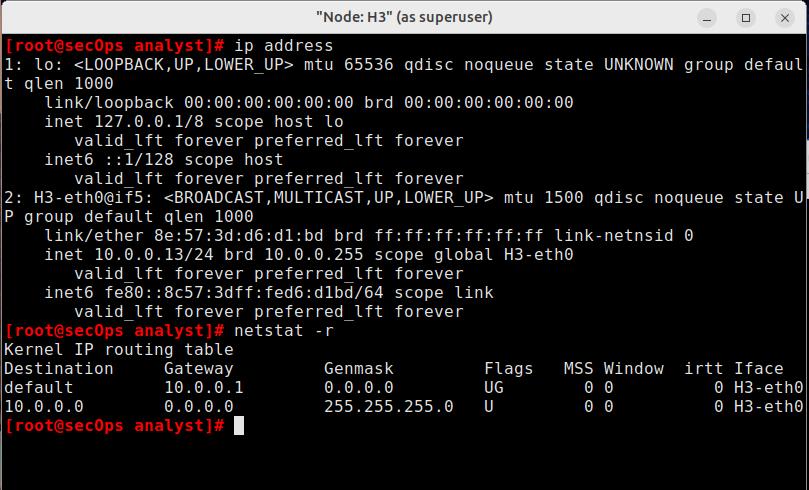
ip addr
On many Linux systems, this command displays:
- Interface names.
- Interface state information.
- IPv4 addresses.
- IPv6 addresses.
- Address prefix lengths.
- Other interface details.
A shorter equivalent for displaying addresses is:
ip a
Understanding example output
You might see a line similar to:
inet 192.168.1.20/24
This indicates an IPv4 address of 192.168.1.20 with a prefix length of 24.
The /24 prefix corresponds to a subnet mask of 255.255.255.0 in IPv4.
Another line might look like:
inet6 fe80::1234:5678:abcd:ef01/64
This is an illustrative IPv6 link-local address. Actual addresses depend on your environment.
Common interface names
Linux interface names may include:
- lo — the loopback interface.
- eth0 or similar names — often Ethernet interfaces.
- wlan0 or similar names — sometimes Wi-Fi interfaces.
- Names such as enp0s3 — common predictable interface naming on some systems.
- Virtual interface names associated with containers or virtual machines.
The naming scheme depends on the distribution and environment.
What is the loopback interface?
The loopback interface allows a computer to communicate with itself.
The IPv4 loopback address is 127.0.0.1, while ::1 is the IPv6 loopback address.
Loopback addresses are useful for local testing because traffic does not need to reach another physical computer.
Cybersecurity use: ip addr helps you understand which interfaces and addresses are configured on your own system.
-
Command Two: ip route — Inspect Routing Information
The routing table helps Linux determine where to send IP packets.
Run:
ip route
On systems using the standard ip utility, this displays IPv4 routes.
For IPv6 routing information, run:
ip -6 route
What is a default route?
A routing table may contain an entry beginning with:
default via …
This generally identifies the next-hop gateway used for destinations without a more specific matching route.
For example, an illustrative route might look like:
default via 192.168.1.1 dev eth0
This indicates a default next hop at 192.168.1.1 through interface eth0. Your actual gateway and interface may be different.
Why routing matters
If a device has an IP address but cannot reach a destination outside its local network, the routing configuration is one of the things to inspect.
However, a default route alone does not prove that internet access is working. The gateway, upstream network, DNS, or destination service may still be unavailable.
Cybersecurity use: Understanding routes helps you interpret local network configuration and troubleshoot communication problems.
-
Command Three: ss — Inspect Sockets and Connections
The ss command displays information about network sockets.
A socket is an endpoint used for communication. Depending on the protocol and state, it may be listening for connections or participating in an active connection.
Run:
ss -tuln
These options commonly mean:
- -t — show TCP sockets.
- -u — show UDP sockets.
- -l — show listening sockets.
- -n — show numeric addresses and port numbers rather than resolving names.
This is useful for inspecting local listening sockets without requesting name resolution for each address.
To display TCP connections and related socket information, you can also run:
ss -tuna
This requests TCP and UDP sockets with numeric output and includes non-listening sockets as applicable. Exact details depend on the system and the permissions available to your account.
Understanding a listening port
Suppose a listing includes:
LISTEN 0 128 127.0.0.1:8080 0.0.0.0:*
This is an illustrative example of a TCP listening socket.
The local address 127.0.0.1:8080 indicates that the socket is listening on the loopback address at port 8080. This normally makes it reachable only through the local loopback interface, rather than directly through an external network interface.
Actual output columns and socket states can vary.
Why inspect listening sockets?
Listening sockets help administrators understand which services are waiting for connections.
An unexpected listening port may deserve investigation, but a port number alone does not identify the program or establish that it is malicious. Where necessary, inspect the associated process and verify whether the service is expected.
Safety note: Use ss to inspect your own authorised system. Do not use the results as a reason to probe or access systems you do not own or have permission to test.
-
Command Four: ping — Test Basic Connectivity
The ping command sends ICMP Echo Request messages and reports responses when they are returned.
A local connectivity check is:
ping -c 4 127.0.0.1
On Linux, -c 4 normally requests four ping attempts before the command exits.
This checks the local loopback path. It does not prove that your Wi-Fi, Ethernet connection, router, or internet access is working.
You can also test a destination you own or are authorised to check, for example:
ping -c 4 <your-approved-test-host>
Replace the placeholder with a real hostname or IP address for a system you are permitted to test. Do not include the angle brackets.
How to interpret the results
A successful ping normally shows responses and round-trip timing.
If a ping receives no response, possible explanations include:
- The destination is offline.
- The network path is unavailable.
- A firewall blocks ICMP messages.
- The destination is configured not to respond.
- The hostname could not be resolved.
A failed ping does not necessarily mean a website or service is unavailable. Some systems block ping but allow other forms of communication.
Likewise, a successful ping does not prove that a web application or other service is functioning correctly.
Cybersecurity use: ping is a basic connectivity diagnostic, not a comprehensive security test.
-
Command Five: hostname — Identify the Local Hostname
The hostname command displays or works with the computer’s configured hostname.
Run:
hostname
The output might look like:
linux-lab
This is an illustrative example. Your computer may have a different name.
A fully qualified domain name, when configured and available, may be requested with:
hostname -f
This option depends on the system’s hostname and name-resolution configuration. It may not return a fully qualified domain name in every environment.
Why hostnames matter
Hostnames help distinguish computers in a network or administrative environment.
They may appear in logs, terminal prompts, monitoring dashboards, and configuration files.
However, a hostname is not necessarily a globally unique identifier, and it does not automatically reveal a device’s public IP address.
Cybersecurity use: Knowing the local hostname can help you understand which system produced a command result or log entry.
-
Command Six: DNS Lookup Tools
DNS translates domain names into records that applications can use to locate services.
Linux environments may provide tools such as getent, nslookup, or dig. Availability depends on the distribution and installed packages.
- getent hosts
Run:
getent hosts example.com
This requests host information through the system’s configured name-service mechanisms.
The result may be drawn from DNS or another configured source, such as a local hosts file, depending on the system.
- 2. nslookup
If installed, run:
nslookup example.com
This tool queries DNS-related information about the requested name.
The output commonly includes the DNS server used and one or more returned records, depending on the query and configuration.
- 3. dig
If installed, run:
dig example.com
The dig tool provides detailed DNS query output. A standard query commonly requests an A record, but results can differ depending on the domain and query settings.
For a specific record type, you can use an appropriate query such as:
dig example.com AAAA
This requests IPv6 address records.
What if a lookup fails?
A failed lookup might mean:
- The configured resolver is unreachable.
- The domain does not have the requested record.
- The domain name was entered incorrectly.
- The network is unavailable.
- A local resolver or name-service configuration has a problem.
Do not assume that a failed DNS lookup proves an attack or that the domain itself is malicious.
Cybersecurity use: DNS tools help you understand how a system resolves names and diagnose name-resolution problems. Use them responsibly and avoid making conclusions from a single response.
-
How the Networking Commands Work Together
Each command answers a different question.
Command |
Main question it helps answer |
| ip addr | Which network interfaces and IP addresses are configured locally? |
| ip route | Where would the system route packets for different destinations? |
| ss -tuln | Which TCP and UDP sockets are listening locally? |
| ping -c 4 127.0.0.1 | Does the local loopback path respond to ICMP Echo Requests? |
| hostname | What hostname is configured for this computer? |
| getent hosts example.com | Can the system resolve this name through its configured name-service mechanisms? |
| nslookup example.com | What DNS information does this lookup tool return? |
| dig example.com | What detailed DNS query result is returned? |
You do not need to run every command every time. Select commands that match the problem you are investigating.
For example, if a hostname fails to resolve, a DNS lookup may be more relevant than a process listing. If a local service is not reachable, inspecting listening sockets and local interface configuration may be useful.
-
Safe Practical Linux Lab: Inspect Your Own Network Configuration
Lab title: Linux Network Discovery and Connectivity Basics
Objective: Practise inspecting local interfaces, routes, sockets, hostname configuration, and DNS resolution.
Required environment: Your own Linux computer, an authorised WSL environment, or a Linux virtual machine you are permitted to inspect.
Safety rules:
- Inspect only your own authorised environment.
- Do not scan external IP ranges or networks.
- Do not attempt to access services simply because a port is listening.
- Do not change network configuration.
- Do not disable firewalls or modify routing tables.
- Use only harmless local connectivity checks and ordinary DNS lookups.
Step 1: Inspect network interfaces
Run:
ip addr
Record:
- One interface name.
- Whether the interface appears operational.
- Any IPv4 address shown.
- Any IPv6 address shown, if present.
Do not publish private network details if doing so could expose information about your home or workplace network.
Step 2: Inspect routes
Run:
ip route
If available, inspect IPv6 routes:
ip -6 route
Record whether a default route appears. Your environment may not have one, especially in a restricted container or offline virtual machine.
Step 3: Inspect listening sockets
Run:
ss -tuln
Observe the local addresses and port numbers shown.
Choose one entry and write down the local address and port, if any are present. Do not attempt to connect to unfamiliar services.
If no listening sockets are displayed, that is a valid result.
Step 4: Check the hostname
Run:
hostname
Record the hostname returned by your system.
If you want to try the optional fully qualified hostname query, run:
hostname -f
If it fails or returns an unexpected result, record that outcome rather than changing your hostname configuration.
Step 5: Test the local loopback path
Run:
ping -c 4 127.0.0.1
Observe whether responses are returned and note the reported packet loss, if shown.
This is a local test and does not establish whether the computer can reach the internet.
Step 6: Try a DNS lookup
If getent is available, run:
getent hosts example.com
If nslookup or dig is already installed, you can also try:
nslookup example.com
or:
dig example.com
These commands perform ordinary name lookups. If your environment is offline or DNS requests are blocked, they may fail; that is still a useful observation for your lab report.
Step 7: Write a short lab report
Answer the following:
- Which network interfaces did you observe?
- Did your routing table contain a default route?
- Did ss -tuln show any listening sockets?
- What hostname did your computer report?
- Did the loopback ping receive replies?
- Did the DNS lookup return a result?
- What can you conclude from these results, and what remains unknown?
Lab success criteria
You have completed this exercise when you can:
- Identify local network interfaces and addresses.
- Explain the purpose of a routing table.
- Recognise the meaning of a listening socket.
- Perform a harmless loopback connectivity check.
- Identify your local hostname.
- Use at least one DNS lookup tool where available.
- Explain why a successful ping or DNS lookup does not prove that an entire network is secure.
PREVIOUS LESSON | NEXT LESSON