Introduction to Bash Scripting for Cybersecurity
Student Vocation Cybersecurity Learning Series — Lesson 18 of 30
Welcome to Lesson 18 of the Student Vocation Cybersecurity Learning Series!
In Lesson 17, you learned how ports, protocols, and network connections help computers communicate. Now it is time to begin automating simple Linux tasks using Bash scripting.
Imagine that you regularly need to display your username, check the date, inspect your current directory, and print a report. You could type each command separately every time, or you could put those commands into a script and run them together.
That is one of the main advantages of scripting: it makes repetitive tasks easier to perform consistently.
In cybersecurity, Bash scripts can support routine administration, basic system checks, file organisation, and processing of authorised data. As your skills develop, you will learn how to combine variables, conditions, loops, and commands to create more useful automation.
By the end of this lesson, you should be able to:
- Explain what Bash and shell scripts are.
- Create and run a simple Bash script.
- Understand the shebang line.
- Declare and use variables.
- Use quotation marks correctly.
- Display output using echo and printf.
- Capture command output using command substitution.
- Understand command exit statuses.
- Write a basic if statement.
- Complete a safe scripting lab in your own authorised environment.
-
What Is Bash?
Bash stands for Bourne Again SHell. It is a command interpreter commonly used on Linux systems.
A shell allows you to interact with the operating system by entering commands. It can also interpret scripts containing multiple commands and programming constructs.
For example, you may already know these commands:
whoami
date
pwd
They display your effective username, the current date and time, and your current working directory, respectively.
Bash can run commands like these individually or execute them as part of a script.
What is a shell script?
A shell script is a text file containing commands and shell instructions that can be executed by a shell interpreter.
A Bash script may include:
- Commands.
- Variables.
- Quoted strings.
- Conditional statements.
- Loops.
- Functions.
- Command substitution.
- Error-handling logic.
Scripts help make routine work repeatable. However, a script only does what its instructions and invoked commands tell it to do. It should be reviewed before execution, particularly if it modifies files or system configuration.
-
Why Is Bash Scripting Useful in Cybersecurity?
Cybersecurity professionals often perform tasks that involve checking information, organising data, or repeating administrative steps.
Bash scripting can help with:
A. Basic system checks
A script can display the hostname, username, current date, and operating system information.
B. File organisation
Scripts can help organise files in a dedicated directory or create clearly named reports.
C. Log analysis
A script can search authorised log data for selected words or count matching entries. More advanced lessons will build on this idea.
D. Repetitive administration
A script can combine several harmless commands into one repeatable workflow.
E. Reporting
A script can gather simple information and present it in a readable format.
Important: Automation can magnify mistakes as well as save time. Always understand the commands a script runs, test it in a controlled environment, and avoid running unreviewed scripts with administrator privileges.
-
Creating Your First Bash Script
Let’s create a simple script that displays a welcome message and basic system information.
Step 1: Open a terminal
Use your own Linux computer, an authorised WSL environment, or a Linux virtual machine you are permitted to use.
Step 2: Create a script file
You can use a terminal editor, such as nano, if it is installed:
nano first-script.sh
This opens a text editor for the file. If nano is unavailable, use another text editor you understand.
Step 3: Enter the script
Type the following:
#!/usr/bin/env bash
echo “Welcome to Bash scripting!”
echo “Current user:”
whoami
echo “Current directory:”
pwd
echo “Current date and time:”
date
Save the file as first-script.sh and exit your editor.
Step 4: Run the script with Bash
In the directory where you saved the file, run:
bash first-script.sh
You should see a welcome message followed by your username, current directory, and date and time.
The exact output depends on your environment.
This method runs the file using Bash without requiring you to change its executable permission.
-
What Is a Shebang?
The first line of many shell scripts is called the shebang.
In our example, the line is:
#!/usr/bin/env bash
It tells the operating system which interpreter should be used when the script is executed directly as an executable file.
The sequence #! begins the shebang, while /usr/bin/env bash asks env to locate Bash using the environment’s command search path.
Some scripts instead use an explicit interpreter path, such as #!/bin/bash, when that path is appropriate for their target environment.
Why does the shebang matter?
A correct shebang helps the operating system select the intended interpreter when a script is launched directly.
Without a suitable shebang, direct execution may fail or use an unintended interpreter. Running the script explicitly with bash script-name.sh invokes Bash directly, so it does not rely on the file’s shebang to select the interpreter.
The shebang does not make a script safe by itself. You must still understand what the script does.
-
Making a Script Executable
You can also run a script directly, provided the file has appropriate permissions and the environment supports execution.
For a script you created yourself, you can use:
chmod u+x first-script.sh
This adds execute permission for the file’s owner.
You can then run it from the current directory:
./first-script.sh
The ./ indicates that the script is in the current directory.
You do not need to make every script executable. Running bash first-script.sh is perfectly suitable for this lesson.
-
Understanding Bash Variables
A variable stores a value that a script can use later.
For example:
student=”Cybersecurity Learner”
This creates a variable named student with the value Cybersecurity Learner.
To display the value, use:
echo “$student”
The output is:
Cybersecurity Learner
Important rules for variables
Rule 1: Do not put spaces around the assignment operator.
Correct:
student=”Cybersecurity Learner”
Incorrect:
student = “Cybersecurity Learner”
In the incorrect example, Bash interprets the text differently instead of treating it as a normal variable assignment.
Rule 2: Use the dollar sign to expand a variable.
The variable name is student, but its value is referenced as:
$student
or:
${student}
Braces are particularly useful when a variable appears next to other characters.
For example:
student=”Alex”
echo “${student}_report”
This prints:
Alex_report
Rule 3: Quote variable expansions when they represent text or paths.
For example:
folder=”My Practice Files”
printf ‘%s\n’ “$folder”
The quotation marks help preserve the value as one argument, including its spaces.
-
Using echo and printf
Both echo and printf can display text in a terminal.
- The echo command
Example:
echo “Bash makes routine tasks easier.”
This prints the message followed by a newline in typical Bash usage.
You can also display variables:
topic=”Linux security”
echo “Today’s topic is $topic”
Output:
Today’s topic is Linux security
For simple messages, echo is convenient.
- The printf command
printf provides more predictable formatting for scripts.
Example:
student=”Alex”
printf ‘Welcome, %s!\n’ “$student”
Output:
Welcome, Alex!
Here:
- %s is a format specifier for a string.
- “$student” supplies the value.
- \n represents a newline in the format string.
Another example:
printf ‘Name: %s\nLesson: %s\n’ “Alex” “Bash Basics”
Output:
Name: Alex
Lesson: Bash Basics
For scripts that produce reports or structured output, printf is often a good choice because it gives you explicit control over formatting.
-
Understanding Quotation Marks in Bash
Quotation marks affect how Bash interprets text and variables.
The three forms you should understand first are single quotes, double quotes, and unquoted text.
- Single quotes
Single quotes preserve the literal characters inside them, with no variable expansion.
Example:
student=”Alex”
echo ‘$student’
Output:
$student
Bash prints the dollar sign and variable name literally.
- Double quotes
Double quotes preserve spaces in a string while allowing variable expansion and certain other shell substitutions.
Example:
student=”Alex”
echo “Welcome, $student”
Output:
Welcome, Alex
- Unquoted expansions
Unquoted variable expansions may undergo word splitting and pathname expansion.
For example, if a variable contains a path with spaces, using it without quotes may cause it to be treated as multiple arguments.
Prefer:
cat “$filename”
rather than:
cat $filename
when filename represents a path.
A cybersecurity habit worth developing
Quote variable expansions unless you have a specific reason not to.
This helps scripts handle filenames and text containing spaces more predictably and reduces certain classes of shell-related mistakes.
Quoting is not a complete security solution, but it is an important foundation for writing reliable scripts.
-
Command Substitution
Command substitution allows a script to capture the output of a command and use it as a value.
The modern, preferred form is:
$(command)
For example:
current_user=$(whoami)
echo “Current user: $current_user”
The shell runs whoami, captures its standard output, and stores that output in current_user.
Another example:
today=$(date +%F)
printf ‘Report date: %s\n’ “$today”
This stores the date in a year-month-day format on systems where the command supports that format.
Command substitution is useful when a script needs to use information produced by another command.
Important detail
Command substitution removes trailing newline characters from the captured output. It does not preserve every aspect of a command’s output exactly.
Also, command substitution does not automatically mean a command succeeded. Check the exit status when success or failure matters.
-
Understanding Exit Statuses
When a command finishes, it returns an exit status.
In common Unix and Linux conventions:
- 0 usually indicates success.
- A non-zero value indicates failure or another condition that the command reports.
Bash stores the most recent command’s exit status in the special variable:
$?
Example: Check whether a command succeeded
true
echo “$?”
The output should be:
0
The true command exits successfully.
Now try:
false
echo “$?”
The output should be:
1
The false command returns a non-zero status.
Why exit statuses matter
A script should not always assume that a command worked.
For example, a command may fail because:
- A file does not exist.
- The user lacks permission.
- A program is unavailable.
- A requested resource cannot be reached.
- An input value is invalid.
Exit statuses allow scripts to respond appropriately.
Important: An exit status of zero indicates that the command reported success. It does not independently prove that the overall task achieved every intended result or that the result is secure.
-
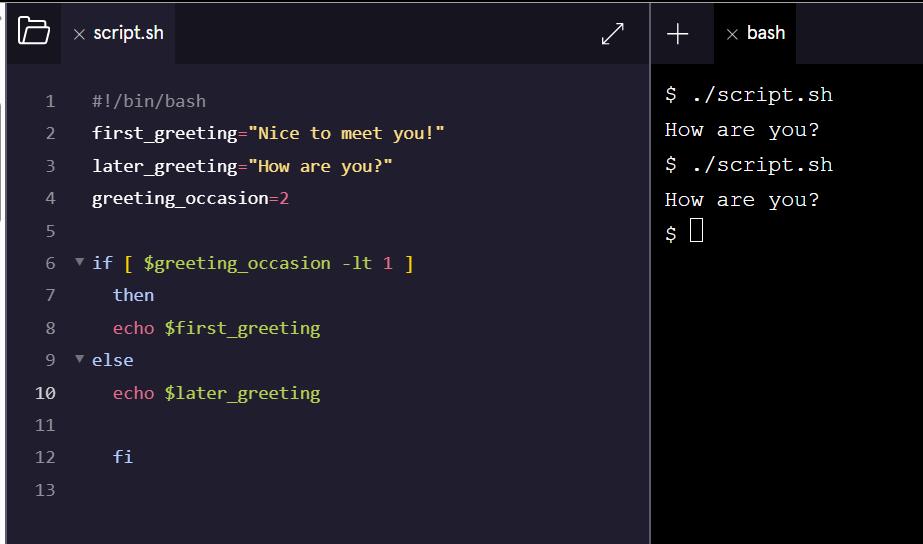
Writing a Basic if Statement
An if statement lets a script make a decision based on a condition.
For example:
#!/usr/bin/env bash
if true; then
echo “The condition succeeded.”
else
echo “The condition failed.”
fi
The output is:
The condition succeeded.
The condition succeeds because the true command returns status zero.
The structure is:
if condition; then
# Commands to run when the condition succeeds
else
# Commands to run otherwise
fi
The else branch is optional.
Using if to check a file
The following example checks whether a file exists:
#!/usr/bin/env bash
filename=”first-script.sh”
if [[ -f “$filename” ]]; then
echo “The file exists.”
else
echo “The file was not found.”
fi
In Bash, [[ -f “$filename” ]] tests whether the path refers to an existing regular file.
The filename in this example is relative to the current working directory. If you run the script from another directory, the result may differ.
Why conditions are useful
Conditions let scripts handle different outcomes rather than blindly performing the same steps every time.
In cybersecurity administration, this could mean displaying a message if a sample report exists or recording a warning if an expected file is missing.
Always define the condition carefully and test both the success and failure paths.
-
Putting the Concepts Together
Let’s combine variables, command substitution, output formatting, and a condition in a harmless script.
#!/usr/bin/env bash
student=”Cybersecurity Learner”
current_user=$(whoami)
current_directory=$(pwd)
printf ‘Student: %s\n’ “$student”
printf ‘Current user: %s\n’ “$current_user”
printf ‘Working directory: %s\n’ “$current_directory”
if [[ -d “$current_directory” ]]; then
echo “The current directory exists.”
else
echo “The current directory could not be verified.”
fi
This script:
- Assigns a value to a variable.
- Captures command output.
- Prints information using printf.
- Tests whether the current directory exists.
- Displays a message based on the condition.
It does not intentionally change system configuration or modify existing files.
You can use this example as a foundation for the practical lab below.
-
Safe Practical Bash Lab
Lab title: Create a Basic System Information Script
Objective: Create and run a Bash script that displays simple information about your own authorised environment.
Required environment: Your own Linux computer, an authorised WSL environment, or a Linux virtual machine you are permitted to use.
Safety rules:
- Work only in your own practice directory.
- Review the script before running it.
- Do not use sudo.
- Do not run scripts downloaded from unknown sources.
- Do not include passwords, authentication tokens, or other secrets.
- Use the script only for harmless local information checks.
Step 1: Create your practice directory
Run:
cd ~
mkdir -p bash-practice
cd bash-practice
pwd
Check that the path ends with bash-practice.
Step 2: Create the script
Open a text editor:
nano system-report.sh
Enter the following script:
#!/usr/bin/env bash
student=”Cybersecurity Learner”
current_user=$(whoami)
current_date=$(date +%F)
printf ‘%s\n’ “=== Basic System Report ===”
printf ‘Student: %s\n’ “$student”
printf ‘User: %s\n’ “$current_user”
printf ‘Date: %s\n’ “$current_date”
if [[ -d “$HOME” ]]; then
echo “Home directory exists.”
else
echo “Home directory could not be verified.”
fi
printf ‘%s\n’ “=== Report Complete ===”
Save the file as system-report.sh and exit the editor.
Step 3: Review the script
Before running it, identify:
- The shebang line.
- The three variable assignments.
- The printf statements.
- The if condition.
- The two possible messages in the conditional branch.
Notice that the script only displays information and checks whether your home-directory path exists.
Step 4: Run the script
Execute:
bash system-report.sh
The output should include the report title, student label, current username, date, and a message about the home directory.
Your username and date will depend on your environment.
Step 5: Check the exit status
Immediately after the script finishes, run:
echo “$?”
A zero status indicates that Bash reported successful completion of the script’s last command sequence. If the script encountered an error, the result may differ depending on where it occurred and how the script handles it.
For this simple exercise, review any error messages rather than assuming the script worked correctly.
Step 6: Practise a harmless condition
Create a separate example in the terminal:
if [[ -f “system-report.sh” ]]; then
echo “The script file exists.”
else
echo “The script file was not found.”
fi
Because you created the file in the current directory, the first message should normally appear.
Now test the condition using a filename that you know does not exist in this practice directory:
if [[ -f “missing-practice-file.txt” ]]; then
echo “The file exists.”
else
echo “The file was not found.”
fi
The second message should normally appear.
These examples do not create, delete, or modify files.
Step 7: Complete your lab notes
Answer the following questions:
- What does the shebang tell the operating system when a script is executed directly?
- Why did we use quotation marks around variable expansions?
- What did command substitution do for current_user?
- What does an exit status of zero usually indicate?
- Which branch of the file-checking condition ran when the file existed?
Lab success criteria
You have completed the lab when you can:
- Create and run a Bash script.
- Explain the purpose of the shebang.
- Assign and use variables.
- Capture command output.
- Display formatted text using printf.
- Interpret a basic exit status.
- Write and test a simple if statement.
- Explain why scripts should be reviewed before execution.
PREVIOUS LESSON | NEXT LESSON