Understanding Ports, Protocols and Network Connections in Linux
Student Vocation Cybersecurity Learning Series — Lesson 17 of 30
Welcome to Lesson 17 of the Student Vocation Cybersecurity Learning Series!
In Lesson 16, you learned how to inspect Linux network interfaces, IP addresses, routing tables, and DNS information. In this lesson, we will explore how applications use network protocols and port numbers to communicate.
When you open a website, connect to a remote server, or use an application that communicates over a network, several networking components work together. IP addresses help identify network endpoints, protocols define communication rules, and port numbers help direct transport-layer traffic to the appropriate application or service.
Understanding these concepts is essential for cybersecurity because it helps you interpret network connections, recognise listening services, and troubleshoot communication problems.
By the end of this lesson, you should be able to:
- Explain the difference between an IP address and a port number.
- Describe the basic purposes of TCP and UDP.
- Recognise common service ports.
- Distinguish listening sockets from established connections.
- Use ss and other read-only commands to inspect your own Linux system.
- Complete a safe networking lab in an authorised environment.
-
What Is a Network Protocol?
A network protocol is a set of rules that devices or applications follow to exchange information.
Protocols define how information is structured, transmitted, received, and interpreted.
Examples include:
- IP: Provides addressing and packet delivery across networks.
- TCP: Provides a reliable, ordered byte stream between endpoints.
- UDP: Provides datagram-based communication without TCP’s built-in delivery and ordering guarantees.
- HTTP: Defines communication used by web applications.
- HTTPS: HTTP protected by TLS, providing transport security such as encryption and authentication when correctly configured.
- DNS: Supports queries for domain names and other records.
Protocols operate at different layers and often work together.
For example, a browser may use HTTPS at the application layer, TCP at the transport layer, and IP at the network layer. HTTP/3 is an important exception to the traditional TCP-based web model because it uses QUIC over UDP.
Understanding which protocol is involved helps you interpret network activity accurately.
-
What Is an IP Address?
An IP address is a network-layer address used to identify an interface or endpoint for Internet Protocol communication.
There are two main IP versions.
A. IPv4
IPv4 addresses commonly appear as four decimal numbers separated by dots.
Example:
192.168.1.20
Each number represents eight bits, so an IPv4 address contains 32 bits in total.
IPv4 addresses may be private or public. Private IPv4 ranges are commonly used inside homes, offices, and internal networks.
Examples of private IPv4 ranges include:
- 10.0.0.0/8
- 172.16.0.0/12
- 192.168.0.0/16
An address such as 192.168.1.20 is commonly used as a private network address.
B. IPv6
IPv6 addresses use hexadecimal notation separated by colons.
Example:
2001:db8::20
This is an illustrative address from a documentation range, not a real public destination for this lesson.
IPv6 uses 128-bit addresses and provides a much larger address space than IPv4.
C. Why IP addresses matter
IP addresses help systems identify where packets should be sent.
However, an IP address alone does not necessarily identify a particular application. A computer may run several network services simultaneously.
That is where transport protocols and port numbers become important.
-
What Is a Port Number?
A port number helps identify a communication endpoint associated with a transport protocol, such as TCP or UDP.
For TCP and UDP, port numbers range from 0 to 65535.
A simplified analogy is a large office building:
- The IP address is like the building’s street address.
- The port number is like a particular department or reception point within that building.
- The protocol defines rules for how the communication takes place.
This analogy is not exact, but it helps explain why an IP address and a port number serve different purposes.
Example: IP address and port together
Consider this endpoint:
192.168.1.20:443
In a TCP or UDP context, the notation indicates the address 192.168.1.20 and port 443.
The meaning depends on the transport protocol and service configuration. Port 443 is commonly associated with HTTPS over TCP, and UDP port 443 is commonly used by QUIC for HTTP/3.
A network connection is not identified by a port number alone.
For TCP, a connection is normally distinguished by a combination of the local and remote IP addresses and port numbers, along with the protocol.
This combination helps the operating system distinguish multiple connections, even when they involve the same server port.
-
Understanding TCP
TCP stands for Transmission Control Protocol.
It provides a reliable, ordered byte stream between communicating endpoints. TCP includes mechanisms for acknowledging received data, retransmitting lost data, and managing the flow of information.
Applications commonly use TCP when they need a dependable stream of data.
Examples include:
- Traditional HTTPS connections.
- SSH remote administration.
- Many database connections.
- Email protocols such as SMTP and IMAP.
How TCP works at a basic level
A typical TCP connection begins with a handshake involving three messages:
- The client sends a SYN.
- The server responds with SYN-ACK.
- The client replies with ACK.
After the handshake succeeds, the endpoints can exchange application data.
The handshake helps establish connection state, but it does not by itself prove that an application is secure or trustworthy.
What does TCP provide?
TCP supports:
- Reliable delivery of the byte stream.
- Ordered delivery to the receiving application.
- Retransmission of lost data.
- Flow control.
- Congestion control.
These features make TCP suitable for many applications that need dependable communication.
-
Understanding UDP
UDP stands for User Datagram Protocol.
UDP sends independent datagrams without providing TCP’s built-in connection establishment, delivery acknowledgement, or ordered-stream guarantees.
Applications using UDP may implement their own reliability mechanisms when needed.
Examples of technologies that can use UDP include:
- DNS queries in common configurations.
- Real-time voice and video applications.
- Some online games.
- QUIC, which supports HTTP/3.
TCP versus UDP
Feature |
TCP |
UDP |
| Communication model | Connection-oriented byte stream | Datagram-based |
| Built-in reliable, ordered delivery | Yes | No |
| Connection handshake | Normally required | No TCP-style handshake |
| Delivery acknowledgements and retransmission | Provided by TCP mechanisms | Not provided by UDP itself |
| Common examples | SSH, HTTPS over TCP, IMAP | DNS in common configurations, QUIC, many real-time applications |
UDP is not inherently insecure, and TCP is not inherently secure. Security depends on the application, configuration, authentication, encryption, and other protections.
-
Common Service Ports
Certain port numbers are widely associated with common services. These associations are useful when interpreting network output, but they are conventions rather than proof of what a service is actually running.
Port |
Transport |
Common association |
| 20/21 | TCP | FTP data and control in traditional active-mode FTP conventions |
| 22 | TCP | SSH |
| 25 | TCP | SMTP email transfer |
| 53 | UDP and TCP | DNS |
| 67/68 | UDP | DHCP for IPv4 |
| 80 | TCP | HTTP |
| 110 | TCP | POP3 email retrieval |
| 123 | UDP | NTP time synchronisation |
| 143 | TCP | IMAP email retrieval |
| 443 | TCP | HTTPS; also commonly UDP for QUIC/HTTP/3 |
| 587 | TCP | Message submission, commonly using SMTP submission |
| 993 | TCP | IMAP over TLS |
| 995 | TCP | POP3 over TLS |
| 3306 | TCP | MySQL’s commonly configured default port |
| 5432 | TCP | PostgreSQL’s commonly configured default port |
These are common defaults, not a guarantee that a service is listening on that port. Administrators can configure services to use different ports.
Some protocols also use additional ports or have more complex connection behaviour.
Three broad port ranges
The standard port-number ranges are commonly described as:
- System ports: 0–1023.
- User or registered ports: 1024–49151.
- Dynamic or private ports: 49152–65535.
These are the conventional IANA ranges. Operating systems may have implementation-specific details about how ports are allocated and used.
Client applications often use temporary local ports when connecting to a remote service. These are commonly called ephemeral ports.
For example, a client may use a temporary local port to connect to a server’s TCP port 443. The client’s local port and the server’s destination port have different roles.
-
What Is a Listening Socket?
A socket is a communication endpoint. A listening TCP socket is waiting for incoming connection requests on a configured local address and port.
For example, a web server may listen on TCP port 80 or 443.
A service can listen on:
- A loopback address, which generally limits access to the local system through that interface.
- A particular local network address.
- A wildcard address, which may allow listening on multiple local interfaces, subject to the system’s networking configuration.
A service listening on a wildcard address is not automatically reachable from the public internet. Firewalls, routing, network address translation, and other controls may affect reachability.
Why should cybersecurity students inspect listening sockets?
Inspecting listening sockets helps you understand which services are waiting for incoming connections.
It can help answer questions such as:
- Is an expected service listening?
- Is a development server bound only to loopback?
- Does an unfamiliar port appear in the local socket list?
- Does the socket’s address indicate a specific interface or a wildcard binding?
A listening port is not automatically a vulnerability. You must understand the service, its configuration, its intended exposure, and the protections around it.
-
What Is an Established Connection?
An established TCP connection has completed its connection handshake and is in the established state, allowing the endpoints to exchange data.
An established connection might belong to:
- A browser connected to a website.
- An SSH client connected to an authorised server.
- A database client connected to a database.
- A background application communicating with another service.
The state alone does not prove whether the communication is legitimate.
Common TCP states
State |
Basic meaning |
| LISTEN | Waiting for incoming TCP connections |
| ESTAB | TCP connection established |
| SYN-SENT | A connection attempt has sent a SYN and is awaiting a response |
| SYN-RECV | A SYN has been received and the handshake is in progress |
| TIME-WAIT | A connection endpoint is waiting for a period after closure to handle delayed packets safely |
| CLOSE-WAIT | The remote endpoint has closed its side, and the local application has not yet completed closing |
Not every state appears in every output, and UDP does not use TCP’s connection-state model in the same way.
-
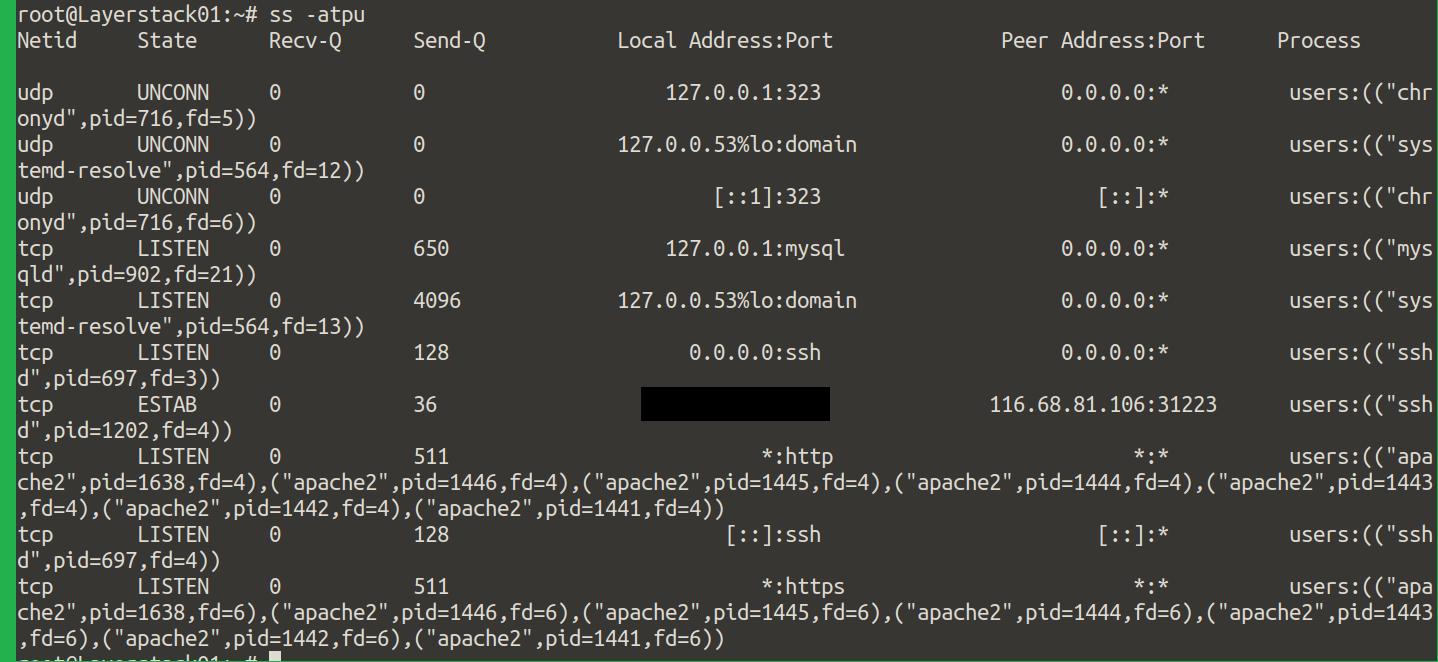
Using ss to Inspect Network Connections
The ss command is one of the most useful Linux tools for inspecting sockets.
A. View listening TCP and UDP sockets
Run:
ss -tuln
Common options include:
- -t — TCP.
- -u — UDP.
- -l — listening sockets.
- -n — numeric addresses and ports.
This command provides a useful overview of local listening sockets.
B. View TCP connections
Run:
ss -tn
This requests TCP sockets and displays numeric addresses and ports. It can help you inspect established connections and other TCP socket states, depending on the current system activity.
C. View all TCP sockets with process information where permitted
Run:
ss -tpn
This requests TCP sockets, process information where available, and numeric addresses and ports.
The process details may be incomplete for an ordinary user if the system restricts visibility.
D. View UDP sockets
Run:
ss -un
This displays UDP sockets with numeric addresses and ports.
UDP does not establish connections in the TCP sense, so interpret its output accordingly.
E. Filter by a local port
For example:
ss -tn ‘( sport = :443 )’
This asks ss to filter TCP sockets whose local source port is 443, using the tool’s socket-filter syntax.
A local port filter is not the same as filtering remote destination ports. Always read the command and its filter carefully.
F. Interpret results cautiously
If a process appears to be listening on a port, do not assume that it is malicious simply because the port is unfamiliar.
Check whether the service is expected, which application owns it, which address it is bound to, and whether the configuration matches the system’s intended role.
Use these commands only on systems you own or are explicitly authorised to inspect.
-
Related Read-Only Commands
Several other commands can help you understand the context around network connections.
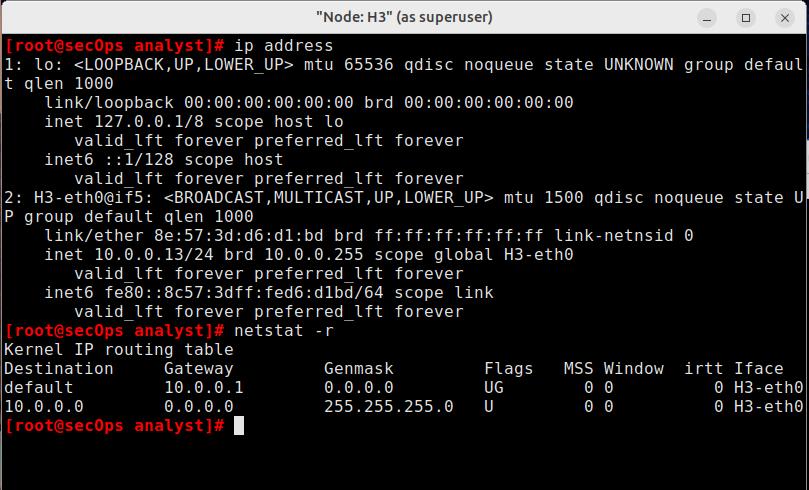
A. ip addr
Displays local network interfaces and IP addresses:
ip addr
B. ip route
Displays routing information:
ip route
C. hostname
Displays the local system’s hostname:
hostname
D. getent hosts
Queries the system’s configured name-service mechanisms for a hostname:
getent hosts example.com
The result may come from DNS or another configured source.
E. ping
Tests basic ICMP reachability:
ping -c 4 127.0.0.1
This checks the local loopback path, not internet connectivity.
These commands provide complementary information. For example, ip addr shows the configured address, ip route shows routing information, and ss shows local socket activity.
-
Practical Linux Lab: Inspect Your Own Network Sockets
Lab title: Ports, Protocols, and Connection States
Objective: Practise inspecting your own Linux network sockets and interpreting their addresses and states.
Required environment: Your own Linux computer, an authorised WSL environment, or a Linux virtual machine you are permitted to inspect.
Safety requirements:
- Work only on your own authorised system.
- Use read-only inspection commands.
- Do not scan external systems or network ranges.
- Do not attempt to access unfamiliar services.
- Do not stop processes or change firewall settings.
- Do not change network configuration during the exercise.
Step 1: Inspect local addresses
Run:
ip addr
Record one interface name and an IP address, if one is assigned.
Step 2: Inspect routing information
Run:
ip route
Observe whether a default route is present. Do not make changes to the routing table.
Step 3: List listening sockets
Run:
ss -tuln
Look at the local address and port columns.
Record one listening entry if any are present. If no listening sockets appear, record that observation instead.
Step 4: Inspect TCP sockets
Run:
ss -tn
Look for the state column and note whether any TCP connections are established at that moment.
If the output is empty, your system may simply have no TCP sockets matching the query at that time.
Step 5: Inspect process information where available
Run:
ss -tpn
If permitted, the output may associate sockets with process details. It is normal for some process information to be unavailable to ordinary users.
Do not terminate or modify any process as part of this lab.
Step 6: Inspect UDP sockets
Run:
ss -un
Observe the local addresses and port numbers, if any are shown. Remember that UDP does not use TCP’s ESTAB state model.
Step 7: Check your hostname and loopback connectivity
Run:
hostname
ping -c 4 127.0.0.1
Record the hostname and whether the loopback test received replies.
Step 8: Write a short lab report
Answer the following:
- What is the difference between an IP address and a port number?
- Did ss -tuln display any listening sockets?
- Did ss -tn show any TCP connections?
- What is the difference between LISTEN and ESTAB?
- Why should you investigate an unfamiliar listening port before drawing a security conclusion?
Lab success criteria
You have completed the lab when you can:
- Explain IP addresses, transport protocols, and port numbers.
- Identify listening sockets in ss output.
- Recognise the ESTAB state in TCP output.
- Explain why UDP does not follow TCP’s connection-state model.
- Use read-only commands to inspect your own system.
- Record observations without making unsupported assumptions.
PREVIOUS LESSON | NEXT LESSON