What Is a Firewall? How It Protects Your Computer and Network
Student Vocation Cybersecurity Learning Series — Lesson 9 of 30
Every time you browse a website, use an online learning platform, send an email, or connect an application to the internet, your device communicates with other devices and systems.
Most of this communication is useful and expected. However, some network connections may be unwanted, unauthorized, or potentially dangerous.
How can a computer or network control which connections are allowed?
One important security technology is a firewall.
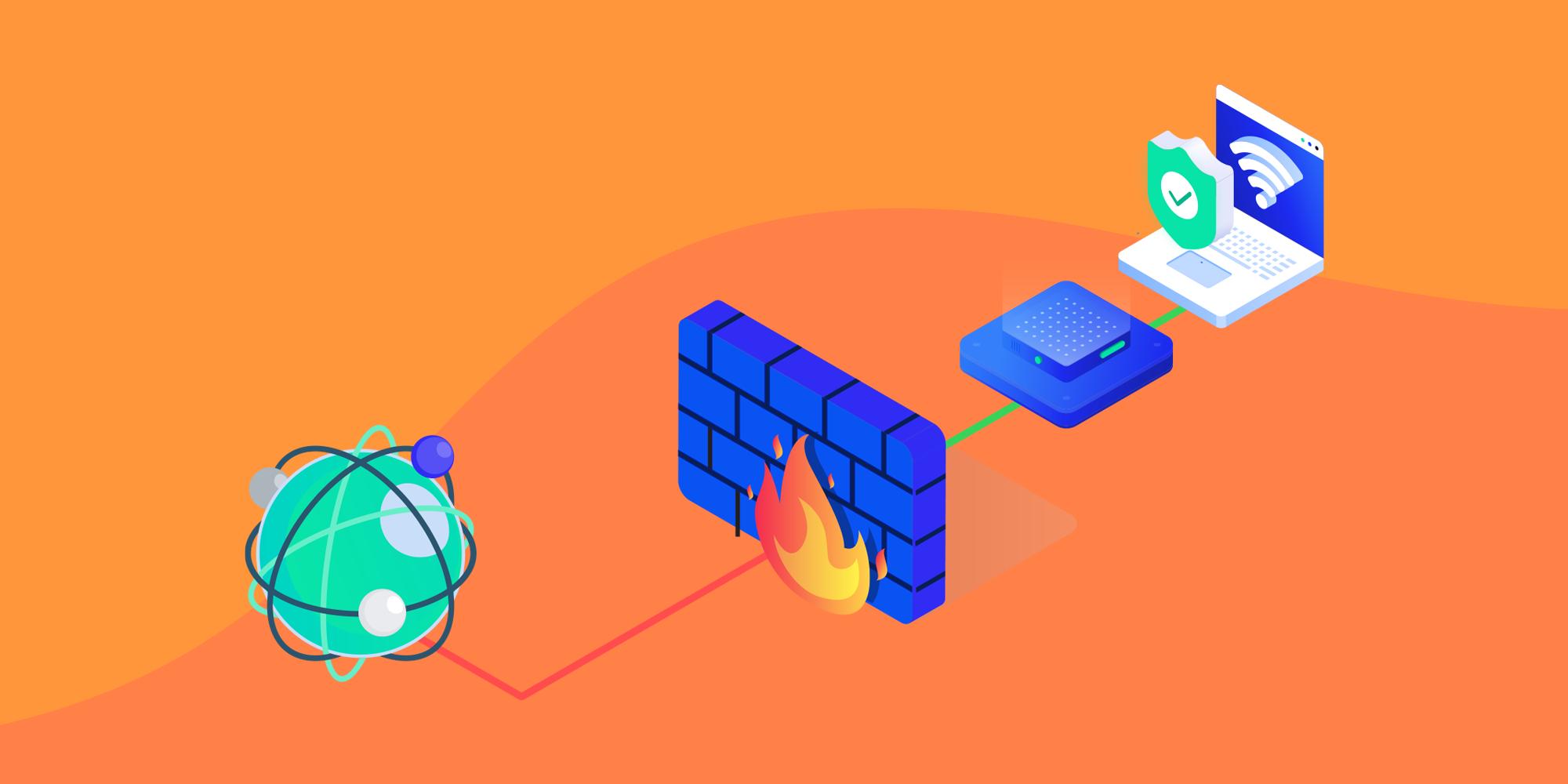
A firewall monitors and filters network traffic according to a set of security rules. It can help block unwanted connections and reduce exposure to certain network-based threats.
In this lesson, you will learn what a firewall is, how it works, the difference between hardware and software firewalls, and how to understand firewall protection in everyday computing.
-
What Is a Firewall?
A firewall is a security system that monitors and controls network traffic according to defined rules.
Depending on its configuration, a firewall can allow, block, or otherwise filter traffic entering or leaving a computer or network.
Think of a firewall as a security checkpoint.
A building may have an entrance where visitors are checked against access rules. Similarly, a firewall evaluates network traffic against rules established by the operating system, network administrator, or security policy.
A beginner-friendly example
Imagine a school computer laboratory containing 30 computers connected to a network.
The school wants students to access educational websites, but it also wants to limit unnecessary incoming connections to the computers.
A properly configured firewall can help enforce the school’s network-access policy.
It may allow expected connections while blocking traffic that does not meet the configured rules.
The exact behavior depends on the firewall, its rules, and the network design.
Important: A firewall does not automatically know whether every website or message is trustworthy. It applies its configured rules and capabilities to network traffic.
-
Why Are Firewalls Important?
Computers and networks communicate through connections that can expose services to other devices.
If a service is unnecessarily accessible, incorrectly configured, or affected by a vulnerability, an attacker may attempt to exploit it.
Firewalls help reduce this exposure by controlling which traffic can reach particular devices, applications, or network services.
Common benefits include:
- Blocking certain unauthorized incoming connections.
- Restricting access to network services.
- Applying network-access policies.
- Separating networks with different security requirements.
- Limiting some unwanted outgoing connections.
- Reducing exposure to certain network-based attacks.
- Supporting monitoring and investigation when logging is available.
Firewalls are only one part of cybersecurity. They work best alongside software updates, secure passwords, multi-factor authentication, malware protection, and safe browsing habits.
-
How Does a Firewall Work?
A firewall uses rules to determine how to handle network traffic.
Depending on its capabilities, it may examine information such as:
- Source IP address: where traffic appears to originate.
- Destination IP address: where traffic is directed.
- Source and destination ports.
- Network protocol, such as TCP or UDP.
- Connection state.
- Application identity or other traffic characteristics supported by the firewall.
What is an IP address?
An IP address is a network address used to identify an endpoint for communication on an IP network.
For example, a computer may have a private IP address within a home or school network.
IP addresses help network devices route traffic to the intended destination.
What is a port?
A port helps identify a particular network service or application endpoint.
For example, HTTPS commonly uses TCP port 443.
A firewall rule may permit or restrict traffic based on the destination port, protocol, application, or other supported conditions.
However, allowing a port does not automatically make the service behind it safe. The service must also be properly configured and maintained.
How a rule works
Suppose a firewall is configured to block unsolicited incoming connections to a student laptop while allowing established connections related to ordinary web browsing.
The firewall evaluates traffic against its rules and connection state.
Traffic that matches an allowed rule can pass. Traffic that matches a blocking rule is denied.
Actual behavior depends on the firewall’s configuration, rule order, and capabilities.
-
What Is the Difference Between Inbound and Outbound Traffic?
Network traffic can move in different directions relative to a device or network.
Inbound traffic
Inbound traffic is traffic entering the device or network being considered.
Example: A connection attempt from another device directed toward a service running on your computer.
Firewalls can restrict incoming connections to reduce unwanted access.
Outbound traffic
Outbound traffic is traffic leaving the device or network being considered.
Example: A browser sending a request to an online learning platform.
Firewalls may also control outgoing traffic. This can help enforce policies or restrict some unauthorized communications.
Why direction matters
A home firewall may block unsolicited incoming connections while allowing ordinary outbound web requests and their associated responses.
A business firewall may apply more detailed rules to both incoming and outgoing traffic.
The correct policy depends on the organization’s needs, the services it operates, and its security requirements.
-
Types of Firewalls
Firewalls can be implemented in different ways. Two common categories are hardware firewalls and software firewalls.
- Hardware or network firewalls
A network firewall is deployed at a network boundary or between network segments.
It may be a dedicated appliance, a router with firewall capabilities, or a virtual firewall service.
For example, a home router commonly includes firewall functions that help control traffic between the home network and the internet.
In a school or office, a network firewall may apply security rules to many connected devices.
Benefits:
- Can protect multiple devices through a central policy.
- Can help separate different network areas.
- May provide detailed logging and management features.
- Can support organization-wide access rules.
Limitations:
- Incorrect rules can expose services or block legitimate work.
- It may not prevent every threat from reaching a device.
- Devices may still require their own protection.
- More advanced systems may require specialist configuration.
- Software firewalls
A software firewall runs on an individual computer or other supported device.
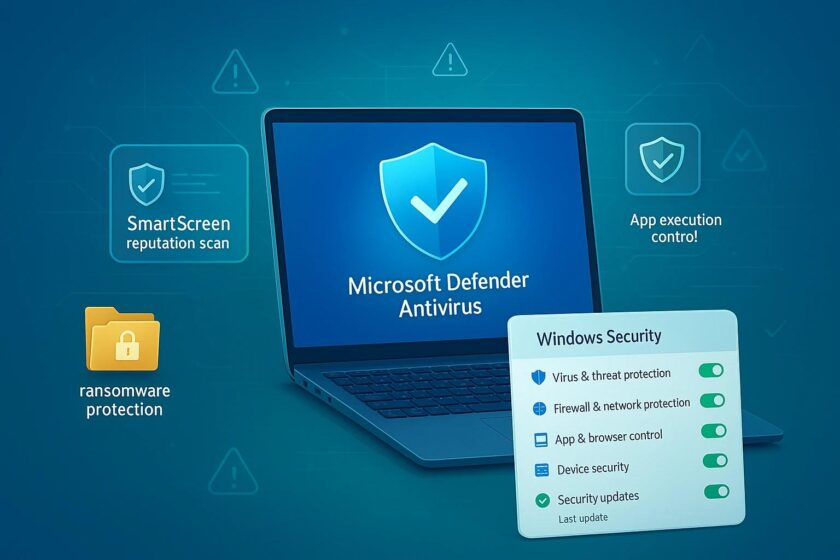
For example, Windows includes Microsoft Defender Firewall.
A software firewall can apply rules to network connections involving the device itself.
Benefits:
- Helps protect the individual device, including when it changes networks.
- Can apply rules to particular applications or connection types.
- Provides an additional layer alongside network-level protection.
Limitations:
- Its protection depends on correct configuration and operation.
- A compromised device may weaken the effectiveness of some protections.
- It cannot replace secure software, updates, or good account-security practices.
- Cloud and virtual firewalls
Cloud environments can use virtual firewalls and cloud-native traffic controls to restrict communication between systems and networks.
For example, an organization hosting an application in the cloud may restrict which network sources can reach the application server.
The exact controls depend on the cloud platform and architecture.
-
What Is the Difference Between a Firewall and Antivirus Software?
Firewalls and antivirus or anti-malware tools have different primary purposes.
Feature |
Firewall |
Antivirus or anti-malware |
| Main purpose | Controls network traffic | Detects, blocks, or removes malicious software and related threats |
| Typical focus | Connections, protocols, addresses, ports, and application traffic | Files, processes, behaviors, and other malware indicators |
| Example | Blocking an unauthorized incoming connection | Detecting a malicious file |
| Can work alongside the other? | Yes | Yes |
Consider this example.
A firewall may block a network connection that violates its rules. Anti-malware software may detect a malicious program that is already on the computer.
Neither tool replaces the other.
A firewall may allow a connection that later delivers harmful content through an otherwise permitted service. Anti-malware software may detect threats that a firewall’s traffic rules cannot identify.
That is why layered security is important.
-
Can a Firewall Stop Every Cyberattack?
No.
A firewall can reduce certain risks, but it cannot guarantee complete protection.
For example:
- A user may enter a password on a phishing website.
- Malware may arrive through an allowed connection.
- An attacker may exploit a vulnerable application through traffic the firewall permits.
- A user may approve an unauthorized authentication request.
- A firewall may have overly permissive or incorrect rules.
These examples connect to our earlier lessons about malware, phishing, passwords, and two-factor authentication.
A strong security plan combines several controls:
- Firewall protection.
- Updated operating systems and applications.
- Reputable anti-malware protection.
- Strong, unique passwords.
- Multi-factor authentication.
- Careful handling of links and attachments.
- Secure configuration and appropriate access permissions.
Each control addresses different risks.
-
What Are Firewall Rules?
A firewall rule defines how certain traffic should be handled.
Depending on the firewall, a rule may specify conditions such as addresses, ports, protocols, applications, connection direction, and network profile.
Common rule actions include:
Allow: Permit traffic that matches the rule.
Block or deny: Prevent matching traffic from passing.
Log: Record matching activity when logging is supported and enabled. Logging may be combined with allow or block actions.
Example of a fictional rule table
The following examples are simplified for learning. They are not instructions to change a real firewall.
Fictional rule |
Intended behavior |
| Allow an approved web application to make its expected connection | Permit required application traffic |
| Block unsolicited inbound connections to a workstation | Reduce unwanted incoming access |
| Allow an approved internal service from a specified network | Restrict access to an intended source |
| Log selected blocked connection attempts | Help an administrator review relevant activity |
Firewall rules must be designed carefully. A rule that is too restrictive may interrupt legitimate applications, while a rule that is too broad may allow unnecessary access.
The principle of least privilege
The principle of least privilege means granting only the access needed for a particular purpose.
Applied to firewalls, this generally means allowing only the traffic necessary for the service or task, rather than permitting everything without a clear reason.
In practice, organizations must also account for legitimate dependencies, business requirements, and operational needs.
-
What Is Windows Firewall?
Microsoft Defender Firewall is a built-in Windows security feature that helps filter network traffic according to firewall rules.
It supports different network profiles, including:
- Domain: Used in supported managed organizational environments.
- Private: Intended for networks the user trusts, such as an appropriately configured home network.
- Public: Intended for less-trusted networks, such as public Wi-Fi.
The profile matters because a device may need different exposure rules in different environments.
For example, a laptop connected to public Wi-Fi should generally avoid unnecessary network discovery and sharing.
Do not automatically mark an unfamiliar public network as private just to make an application work.
Windows versions and organizational policies may differ, so follow the instructions appropriate to your device.
-
How to Check Firewall Status Safely
If you use Windows and have permission to manage your own device, you can review its firewall status without changing any settings.
- Open the Windows Settings
- Open the section for Privacy & security or Windows Security, depending on your Windows version.
- Open Windows Security.
- Select Firewall & network protection.
- Review the displayed network profiles and their status.
You may also be able to open Windows Security from the Start menu by searching for its name.
If the firewall is managed by your school or workplace, follow the organization’s instructions rather than changing its configuration.
What if the firewall is turned off?
Do not assume that you should change settings without understanding why they are disabled.
On a personal device, review the security status and follow trusted Microsoft guidance or consult a qualified technician if the firewall cannot be enabled.
On a managed device, contact the responsible IT administrator.
Avoid disabling the firewall simply to make a program work. A safer solution may be to investigate the application, verify its source, and use an approved, narrowly scoped rule if one is genuinely necessary.
-
Safe Practical Activity: Understand Firewall Decisions
Activity title: Which Network Traffic Should Be Allowed?
Objective: Learn how firewall rules can distinguish between expected and unwanted traffic.
Safety rules:
- Use only the fictional scenarios below.
- Do not attempt to access systems you do not own or have permission to test.
- Do not disable your firewall.
- Do not open network ports or create new firewall rules for this activity.
- If you review your device’s firewall settings, observe the status only.
PREVIOUS LESSON | NEXT LESSON