Two-Factor Authentication Explained: An Essential Guide for Beginners
Student Vocation Cybersecurity Learning Series — Lesson 8 of 30
Imagine that someone discovers your email password.
They try to sign in to your account, expecting to gain access immediately. However, your account requires another verification step before the sign-in can be completed.
The attacker may know your password, but they may not possess the additional authentication factor.
This is the basic idea behind two-factor authentication (2FA).
In today’s digital world, passwords are important, but passwords alone cannot protect every account from every threat. Adding another authentication factor can make unauthorized access more difficult.
In this lesson, you will learn what two-factor authentication means, how it works, the different authentication methods, and how to protect yourself from fraudulent login requests.
-
What Is Two-Factor Authentication?
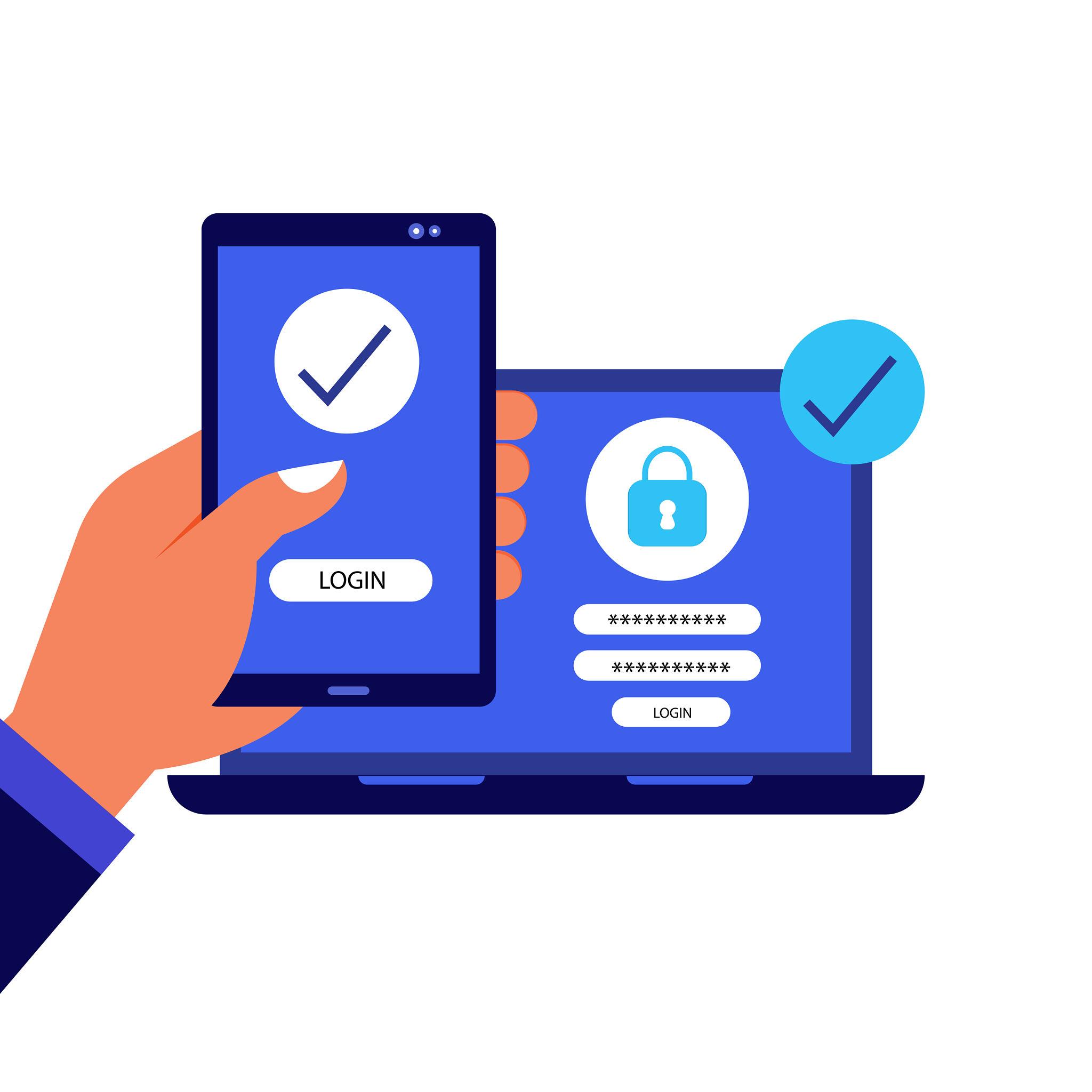
Two-factor authentication, commonly called 2FA, is a security method that requires two different types of authentication evidence to verify a user’s identity.
For example, a service might require:
- Something you know, such as your password.
- Something you possess, such as an authenticator app or security key.
The service checks both factors before allowing access, according to its authentication process.
A simple example
A student signs in to an online learning platform.
First, the student enters their username and password.
Next, the platform requests a verification code from the student’s authenticator app.
If the required checks succeed, the student can access the account.
If someone has stolen only the password, they may still be unable to complete the sign-in.
However, 2FA does not guarantee that every attack will fail. An attacker may still succeed through phishing, stolen sessions, compromised devices, or other methods.
Key idea: Two-factor authentication adds another barrier beyond the password.
-
What Are the Different Authentication Factors?
Authentication factors are commonly grouped into three categories.
- Something you know
This is information you know and can provide when asked to authenticate.
Examples include:
- A password.
- A PIN.
- A memorized passphrase.
- Something you have
This is a physical device or possession used to prove your identity.
Examples include:
- A registered smartphone running an authenticator app.
- A hardware security key.
- A registered authentication device.
- Something you are
This category uses a physical or behavioral characteristic associated with you.
Examples include:
- Fingerprint recognition.
- Facial recognition.
- Certain other biometric checks.
Two-factor authentication requires two distinct factor categories, not merely two separate pieces of information from the same category.
For example, entering a password and then entering a PIN may still involve two things you know. That is not necessarily two-factor authentication.
-
What Is the Difference Between 2FA and MFA?
You may also encounter the term multi-factor authentication (MFA).
MFA is a broader term for authentication that requires two or more distinct factors.
Two-factor authentication specifically uses two factors.
Therefore, 2FA is a form of MFA.
You may also see the term two-step verification. It refers to a sign-in process involving two steps, but two steps do not always mean two independent authentication factors.
For example, a password followed by a second security question may involve two steps without providing two distinct factor categories.
When evaluating an account’s security, look at the authentication methods being used, not just the number of screens.
-
Common Two-Factor Authentication Methods
Different services offer different options. Some methods provide stronger protection against phishing than others.
- SMS verification codes
A service sends a temporary code to a registered mobile phone number.
The user enters the code to complete sign-in.
Advantages:
- Familiar and easy to understand.
- Does not normally require a separate authenticator application.
- Useful when a service offers few alternatives.
Limitations:
- Messages may be intercepted or exposed.
- Phone numbers can be targeted through SIM-swapping or account-recovery fraud.
- A user may be tricked into giving the code to an attacker.
SMS-based 2FA is generally better than using a password alone, but stronger options may be available.
- Authenticator apps
An authenticator app generates time-based verification codes or supports other authentication approval methods.
For time-based one-time passwords, the app and service use a shared secret to generate matching codes that change periodically.
Advantages:
- Can work without a mobile network connection when generating time-based codes.
- Does not depend on receiving an SMS for each sign-in.
- Can provide an additional barrier against password-only attacks.
Limitations:
- Users can still be tricked into entering codes on fraudulent websites.
- Losing access to the app may complicate account recovery if backup options were not prepared.
Only install authenticator apps from official sources and follow the account provider’s setup instructions.
- Push notifications
Some services send an authentication prompt to a registered device.
The user reviews the request and approves or rejects it.
Some systems display additional information, such as a number that must match the sign-in screen.
Advantages:
- Convenient for many users.
- May provide context about the attempted sign-in.
- Can reduce the need to enter a code manually.
Limitations:
- Repeated unexpected prompts can pressure users into approving a request.
- Approving without checking can allow an unauthorized sign-in.
Never approve an authentication request you did not initiate.
- Hardware security keys
A hardware security key is a physical device used to authenticate with supported services.
Many modern security keys use phishing-resistant standards such as FIDO2 or WebAuthn.
When correctly implemented, these methods bind authentication to the legitimate website or service, helping protect against fake login pages.
Advantages:
- Strong protection against many forms of credential phishing.
- No need to type a temporary code for supported sign-ins.
- Can be a good choice for important accounts.
Limitations:
- Requires a compatible device and service.
- The user must protect the key and prepare an appropriate recovery method.
- A lost key may prevent access if no alternative has been configured.
- Passkeys and biometrics
Passkeys use cryptographic credentials to authenticate users, often with a fingerprint, face scan, device PIN, or other local unlock method.
Passkeys are not simply passwords plus a fingerprint. They use a different authentication design and can provide strong resistance to phishing.
A biometric check may unlock the credential on the device, while the service verifies the cryptographic authentication response.
Depending on how a service implements sign-in, a passkey can serve as a phishing-resistant alternative to passwords and conventional 2FA.
-
Which Authentication Method Is Best?
The best available method depends on the service, your devices, and your circumstances.
A practical general preference is:
- Use passkeys or supported hardware security keys when suitable.
- Consider a reputable authenticator app when passkeys or security keys are unavailable.
- Use SMS verification if it is the available option, while understanding its limitations.
- Keep account-recovery methods secure regardless of which option you choose.
For especially important accounts, such as your primary email or password manager, use the strongest practical method the provider supports.
Remember that a secure recovery process matters too. A strong authentication method can be undermined if an attacker can easily take over the account through an insecure recovery channel.
-
How Does 2FA Protect You from Password Theft?
Let’s connect this lesson to what we learned in Lessons 6 and 7.
In Lesson 6, we studied phishing attacks. A fraudulent website may trick a user into entering their password.
In Lesson 7, we learned that unique passwords reduce the risks associated with password reuse and credential stuffing.
Now consider a sign-in process that requires a password and a separate authentication factor.
If a criminal obtains the password but cannot satisfy the additional check, the sign-in may be blocked.
However, some phishing attacks are designed to trick victims into providing both passwords and temporary codes or approving a malicious sign-in.
That is why phishing-resistant methods, such as properly implemented passkeys and security keys, can provide stronger protection against fake login pages.
Important: Never share a verification code, recovery code, or unexpected login approval with someone who contacts you.
-
What Is an Authentication Fatigue Attack?
An authentication fatigue attack occurs when an attacker repeatedly sends authentication approval requests in the hope that the victim will eventually approve one.
Imagine that you are studying when your phone repeatedly displays sign-in approval requests for an account you are not trying to access.
You may be tempted to approve one simply to stop the notifications.
Do not do that.
If you receive unexpected authentication requests:
- Reject or ignore requests you did not initiate.
- Do not approve a request simply to stop repeated notifications.
- Review your account’s security activity through its official service.
- Change your password if you suspect someone has obtained it.
- Follow the provider’s instructions to secure the account.
- Contact the provider’s official support team if the activity continues.
Repeated unexpected prompts may indicate that someone knows your password or is attempting to access your account.
-
What Are Backup Codes?
Some services provide backup or recovery codes when you enable 2FA.
These codes can help you regain access if you lose your usual authentication device or cannot use your normal authentication method.
Backup codes are sensitive information. Anyone who obtains a valid code may be able to use it according to the service’s recovery rules.
Protect backup codes by:
- Storing them in a secure password manager or another protected location.
- Avoiding unprotected public documents and shared messages.
- Keeping them separate from devices where practical.
- Not sharing them with anyone who asks unexpectedly.
- Following the service’s instructions for replacing or regenerating them.
Do not assume that every service offers backup codes. Check the provider’s official account-security guidance.
-
What Happens If You Lose Your Phone or Security Key?
Losing an authentication device can make account access difficult, particularly if you did not prepare a recovery method.
Before a problem occurs:
- Check which recovery options your service supports.
- Save recovery codes securely if they are offered.
- Register an additional security key where supported and appropriate.
- Make sure your recovery email and phone number are current.
- Understand how to recover access through the provider’s official process.
If you lose your device:
- Use the provider’s official account-recovery procedure.
- Revoke or remove the lost device from your account when appropriate.
- Secure your account if the device may have been accessed by someone else.
- Contact official support if you cannot recover access.
Avoid third-party services or strangers who promise to bypass account security.
-
How to Enable 2FA Safely
The exact process differs between websites and applications, but the general steps are similar.
Step 1: Open the genuine service.
Visit the official website or application directly. Avoid using unexpected links in emails or text messages.
Step 2: Open account security settings.
Look for sections such as Security, Sign-in methods, Login verification, or Multi-factor authentication.
Step 3: Choose a supported method.
Select an authenticator app, security key, passkey, SMS option, or another supported method that fits your needs.
Step 4: Follow the official setup instructions.
The service may ask you to scan a setup QR code, register a device, create a passkey, or confirm a verification code.
Only complete this process on the genuine service and your own trusted device.
Step 5: Test the method.
Follow the provider’s instructions to confirm that the method works.
Step 6: Prepare recovery options.
Save recovery codes securely if available and check how you would recover access if your device were lost.
Step 7: Review account activity.
Check for unfamiliar sessions or security changes after setup.
Never send your setup QR code, authentication secret, or recovery codes to another person.
-
Safe Practical Activity: Design a Secure Sign-In Plan
Activity title: Choose the Right Authentication Method
Objective: Understand authentication factors and practise making safe account-security decisions without accessing real accounts or revealing personal information.
Safety rules:
- Use only the fictional scenarios below.
- Do not share real passwords, verification codes, setup QR codes, or recovery codes.
- Do not approve unexpected sign-in requests.
- Do not change security settings on an account you do not own or have permission to manage
PREVIOUS LESSON | NEXT LESSON..COMING SOON