How to Secure Your Windows Computer Against Common Cyber Threats
Student Vocation Cybersecurity Learning Series — Lesson 10 of 30
Your Windows computer may contain your school assignments, personal documents, photographs, saved passwords, and access to important online accounts.
If the computer becomes infected with malware, loses important files, or is accessed by an unauthorized person, the consequences can be serious.
Fortunately, you can reduce many common risks by using Windows security features correctly and developing safe computing habits.
This guide explains how to secure a Windows computer step by step, using beginner-friendly examples and practical advice.
-
Keep Windows Updated
Software updates are one of the most important parts of computer security.
Updates can fix security vulnerabilities, improve reliability, and address problems that attackers might otherwise exploit.
Imagine that a software developer discovers a weakness in a program. If a security update fixes that weakness, installing the update helps protect your computer against attacks that depend on it.
How to check for Windows updates
On a supported Windows 11 computer:
- Open Start.
- Open Settings.
- Select Windows Update.
- Select Check for updates, if available.
- Follow the instructions for any updates offered.
- Restart the computer if required.
The exact labels may vary slightly by Windows version and device-management policy.
Also update applications through their official update mechanisms. Updating Windows does not necessarily update every application installed on your computer.
Important: Check whether your Windows version is still supported
As of October 2026, ordinary support for Windows 10 ended on October 14, 2025. Standard Windows 10 installations no longer receive regular free security updates through the normal support programme. Eligible devices may receive updates through the Extended Security Updates (ESU) programme. Microsoft recommends moving to a supported Windows release. https://support.microsoft.com/en-us/windows/deployment/updates-lifecycle/windows-10-support-has-ended-on-october-14-2025
If your computer still runs Windows 10, check its support and ESU eligibility. If it can run a supported Windows 11 release, plan a safe upgrade. If it cannot, consider a supported replacement or another appropriate supported computing option.
Do not assume that a computer is secure simply because it still starts and runs normally.
-
Use Windows Security and Antivirus Protection
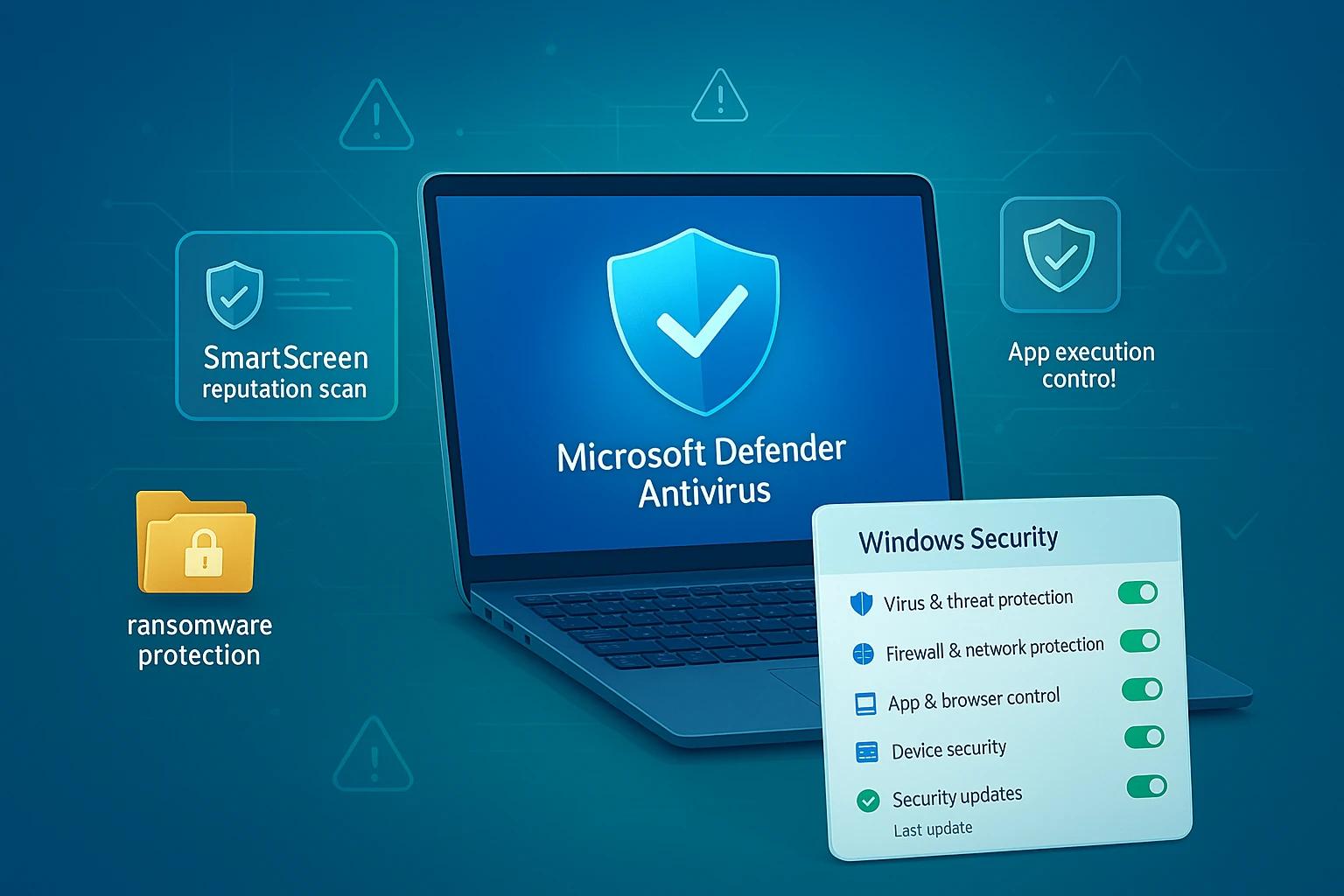
Windows includes a security application called Windows Security. On many supported Windows installations, it provides access to Microsoft Defender Antivirus, firewall settings, and other security features.
The available features depend on your Windows version, configuration, and any security products installed.
What does antivirus software do?
Antivirus and anti-malware software can help detect, block, quarantine, or remove malicious software.
This includes certain forms of:
- Viruses.
- Trojans.
- Spyware.
- Ransomware.
- Other potentially malicious files or behavior.
No security product detects every threat, so keeping protection updated and practising safe computing remain important.
How to review Windows Security
- Open the Start menu.
- Search for Windows Security.
- Open the application.
- Review the displayed protection areas and any warnings.
- Follow trusted Windows instructions if an important protection is disabled or needs attention.
On a personal computer, check that antivirus protection is active and that security intelligence updates are current.
If your school or employer manages the computer, do not override its security policies or install another antivirus product without permission. Multiple real-time antivirus products can conflict.
-
Keep Firewall Protection Enabled
In Lesson 9, we learned that a firewall filters network traffic according to configured rules.
A firewall can help restrict unwanted connections to your computer, but it cannot stop every type of attack.
How to check the firewall
- Open Windows Security.
- Select Firewall & network protection.
- Review the available network profiles.
- Check whether the relevant firewall protection is enabled.
On unfamiliar public Wi-Fi, use an appropriate Public network profile and avoid unnecessary file or printer sharing.
Do not turn off the firewall merely because an application displays a connection warning. First verify the application’s identity and determine whether the connection is genuinely required.
For a managed device, ask the responsible IT administrator before changing firewall settings.
-
Use a Strong Sign-In Method
A secure computer should not be left accessible to anyone who happens to sit in front of it.
Use an appropriate sign-in method, such as a strong password, supported PIN, or biometric authentication where available.
A Windows Hello PIN is generally associated with a particular device and is not the same thing as your Microsoft account password.
Good account-security habits
- Use a strong, private sign-in method.
- Lock the screen when stepping away.
- Avoid sharing your account with other people.
- Use a standard user account for everyday activities when practical.
- Reserve administrator privileges for tasks that genuinely require them.
- Enable multi-factor authentication for important online accounts.
For example, if you use a school computer at home, lock the screen whenever you leave the room and do not allow other people to use your signed-in account.
A strong computer password also does not replace the need to protect your online accounts.
-
Be Careful with Downloads and Installed Applications
One common way malware reaches computers is through deceptive downloads or unsafe software installers.
An application may be advertised as a free game, document converter, video tool, or system cleaner but contain unwanted or malicious components.
Safer download practices
- Obtain software from the official publisher or a trusted distribution source.
- Check the application’s name and publisher before installing it.
- Avoid pirated software and suspicious download pages.
- Do not follow instructions that ask you to disable security protection to install an unknown program.
- Read installation prompts carefully.
- Remove applications you no longer need, using the normal Windows uninstall process.
- Keep installed applications updated.
Example
A student searches for a free PDF converter and downloads an installer from an unfamiliar website.
During installation, the program asks the student to disable antivirus protection.
That request is a warning sign. The safer choice is to stop, avoid running the installer, and look for a trustworthy alternative.
Do not assume that a file is safe just because it has a familiar icon or filename.
-
Recognize Phishing and Suspicious Messages
In Lesson 6, we learned that phishing attempts to trick people into revealing information or performing harmful actions.
Your computer’s security tools cannot prevent every deceptive message from reaching your inbox.
Be cautious when a message:
- Demands immediate action.
- Requests your password or verification code.
- Claims you have won an unexpected prize.
- Contains an unexpected attachment.
- Directs you to an unfamiliar sign-in page.
- Asks you to install a program to solve an unexpected problem.
If you receive a suspicious message, do not interact with its links or attachments. Verify the claim independently using the organization’s official website, application, or trusted contact details.
Remember that HTTPS does not automatically prove that a website is legitimate.
-
Protect Your Files with Backups
Backups are copies of important files that you can use if the originals are lost, damaged, deleted, or encrypted by ransomware.
Even a well-secured computer can experience hardware failure, accidental deletion, or a security incident.
What should you back up?
Consider protecting:
- School assignments.
- Personal photographs.
- Important documents.
- Business files.
- Project materials.
- Other information that would be difficult to replace.
A simple backup plan
Use an appropriate combination of:
- An external storage device that you disconnect when not backing up.
- A reputable cloud backup or storage service with suitable account protection.
- Another backup method appropriate for the importance of your data.
Keep backup accounts secure with unique passwords and multi-factor authentication where available.
Do not leave every backup continuously connected and writable to the same computer if you can avoid it. Malware or ransomware may affect connected storage too.
Periodically test whether you can restore a file from your backup. A backup is most useful when you know it works.
-
Enable Device Encryption When Available
Device encryption helps protect stored information if a computer is lost or stolen.
Depending on the device and Windows edition, available features may include Device Encryption or BitLocker.
Encryption is especially useful for laptops that may be carried outside the home or school.
Before enabling or changing encryption settings:
- Check which encryption feature your device supports.
- Follow the official Windows instructions.
- Store the recovery key securely.
- Confirm that you can access the recovery information when needed.
- Follow your organization’s policies if the computer is managed.
Do not share your recovery key publicly or store it unprotected beside the device.
Encryption protects data at rest, but it does not prevent every form of malware or unauthorized access while the computer is unlocked.
-
Use Windows SmartScreen and Security Warnings Carefully
Supported Windows configurations may include Microsoft Defender SmartScreen and other reputation-based protections that help warn about certain suspicious websites, downloads, or applications.
These protections are useful, but they are not perfect.
If Windows displays a warning about an unfamiliar application or download, do not dismiss it automatically.
Instead:
- Check where the file came from.
- Confirm the publisher and purpose.
- Look for an official version of the application.
- Seek help from a trusted technician or administrator if you are unsure.
Do not follow a stranger’s instructions to bypass a security warning simply to make an application run.
-
Review App Permissions and Account Privileges
Applications may request access to information or device capabilities they do not need.
Depending on the application and Windows version, permissions may cover access to the camera, microphone, location, files, or other resources.
Review these settings periodically and limit access when appropriate.
Why administrator privileges matter
An administrator account can make important system-level changes.
If an application running with elevated privileges is malicious or compromised, it may be able to cause more serious harm than an application with limited permissions.
For everyday activities, using a standard user account where practical can reduce the impact of some mistakes or compromises.
When Windows displays a User Account Control (UAC) prompt, check which application is requesting permission and why.
Do not approve an unfamiliar request simply because it appears on the screen.
- Be Careful with USB Drives and Public Wi-Fi
USB drives
Removable storage can carry files that are unsafe to open.
Before using a USB drive:
- Use devices from trusted sources when possible.
- Avoid opening unexpected files.
- Do not run unknown programs from removable media.
- Follow your organization’s security policy.
- Scan suspicious files using appropriate security tools rather than opening them to investigate.
Public Wi-Fi
Public Wi-Fi can be convenient, but the network may be less trustworthy than your home or workplace network.
When connecting:
- Use the appropriate Public network profile.
- Disable unnecessary sharing.
- Keep the firewall enabled.
- Use HTTPS websites and official applications.
- Avoid entering sensitive information into sites you cannot verify.
- Consider postponing highly sensitive activities if the connection appears suspicious.
HTTPS helps protect data in transit, but it does not prove that the website itself is trustworthy.
- Recognize Possible Signs of a Security Problem
A single symptom does not necessarily mean that a computer is infected. However, unexpected changes may deserve investigation.
Examples include:
- Unfamiliar security warnings.
- Unexpected applications or browser extensions.
- Unusual sign-in notifications.
- Security protection unexpectedly disabled.
- Files becoming inaccessible without a clear explanation.
- Browser settings changing without your permission.
- Unknown applications requesting administrator access.
If you suspect a security incident:
- Avoid opening suspicious files or running unfamiliar programs.
- Follow the security guidance provided by Windows or your trusted security software.
- Run an appropriate scan when safe to do so.
- If an account may be compromised, secure it through the genuine service using a trusted device.
- If ransomware or a serious compromise is suspected, seek qualified technical help and follow your organization’s incident-response procedure.
- Restore files only from backups you have reason to trust.
If you believe a device is actively compromised, disconnecting it from the network may help limit further communication. For a school or work computer, contact the responsible IT team and follow its instructions.
- Safe Practical Activity: Windows Security Checkup
Activity title: Review Your Computer’s Security Status
Objective: Learn how to inspect essential Windows security settings without disabling protection, changing administrator-controlled settings, or accessing systems without permission.
Safety rules:
- Perform this activity only on your own computer or a device you have permission to inspect.
- Do not turn off antivirus or firewall protection.
- Do not download test malware.
- Do not alter organizational security settings.
- Do not share passwords, recovery keys, or other sensitive information.
Part A: Check your Windows version
- Open Settings.
- Select System.
- Select About.
- Identify your Windows edition and version.
Ask yourself: Is this version still receiving security updates?
If you are using Windows 10, remember that ordinary support ended on October 14, 2025. Check whether your device is covered by an eligible Extended Security Updates programme or plan to move to a supported Windows release.
Part B: Review Windows Update
- Open Settings.
- Open Windows Update.
- Review the displayed update status.
- Note whether updates are available or a restart is required.
Do not interrupt an update already in progress. If the device is managed by a school or workplace, follow its update policy.
Part C: Review Windows Security
- Open Windows Security.
- Review the Virus & threat protection area.
- Review Firewall & network protection.
- Read any warnings shown by the application.
- Record whether any item needs attention without changing protected settings.
Part D: Review sign-in and backup habits
Without writing down any actual passwords or recovery keys, consider:
- Is the computer protected by a sign-in method?
- Do you lock the screen when stepping away?
- Do you use unique passwords for important online accounts?
- Is multi-factor authentication enabled where available?
- Are important files backed up?
- Do you know where your recovery information is securely stored?
Part E: Complete your checklist
Mark each item based on what you have actually checked.
Security item |
Status |
| Windows version and support status reviewed | ☐ |
| Windows Update status reviewed | ☐ |
| Antivirus protection status reviewed | ☐ |
| Firewall status reviewed | ☐ |
| Sign-in method and screen-lock habits reviewed | ☐ |
| Important files backed up or backup plan identified | ☐ |
| Important online accounts reviewed for MFA | ☐ |
| Suspicious download and phishing habits reviewed | ☐ |
Expected learning outcome: You should be able to identify your computer’s main security protections, recognize settings that may need attention, and decide when to seek help from a qualified administrator.
PREVIOUS LESSON | NEXT LESSON