Building a Basic Cybersecurity System Information Report with Bash
Student Vocation Cybersecurity Learning Series — Lesson 20 of 30
Welcome to Lesson 20 of the Student Vocation Cybersecurity Learning Series!
In Lesson 19, you learned how to use Bash variables, conditions, logical operators, and loops to automate simple tasks. In this lesson, you will combine those skills to build a useful local system information report.
Cybersecurity professionals need to understand the systems they administer. Before investigating an issue, reviewing a computer’s configuration, or documenting a lab environment, it helps to know basic details about the machine.
A system information report can collect details such as:
- The computer’s hostname.
- The current date and time.
- The operating system.
- The Linux kernel version.
- The current username.
- Disk usage for a selected location.
- Whether expected commands and information are available.
You will use standard Linux commands and Bash scripting to collect and organise this information into a text report.
Safety note: This lesson focuses on read-only information gathering on your own authorised computer or virtual machine. The script will save its report in a dedicated practice directory. It will not scan external networks, change system settings, or require administrator privileges.
By the end of this lesson, you should be able to:
- Explain what a system information report is.
- Use basic commands to collect local system details.
- Understand command substitution and variables in a practical script.
- Format information into readable report sections.
- Check whether commands and files are available.
- Handle basic errors and interpret exit statuses.
- Create a report safely inside your own practice directory.
-
What Is a System Information Report?
A system information report is a structured summary of selected details about a computer or operating environment.
System administrators use reports to document configurations, investigate routine problems, and establish a baseline for later comparison.
In cybersecurity, a basic report can help a learner identify which environment is being used and document the state of a training machine.
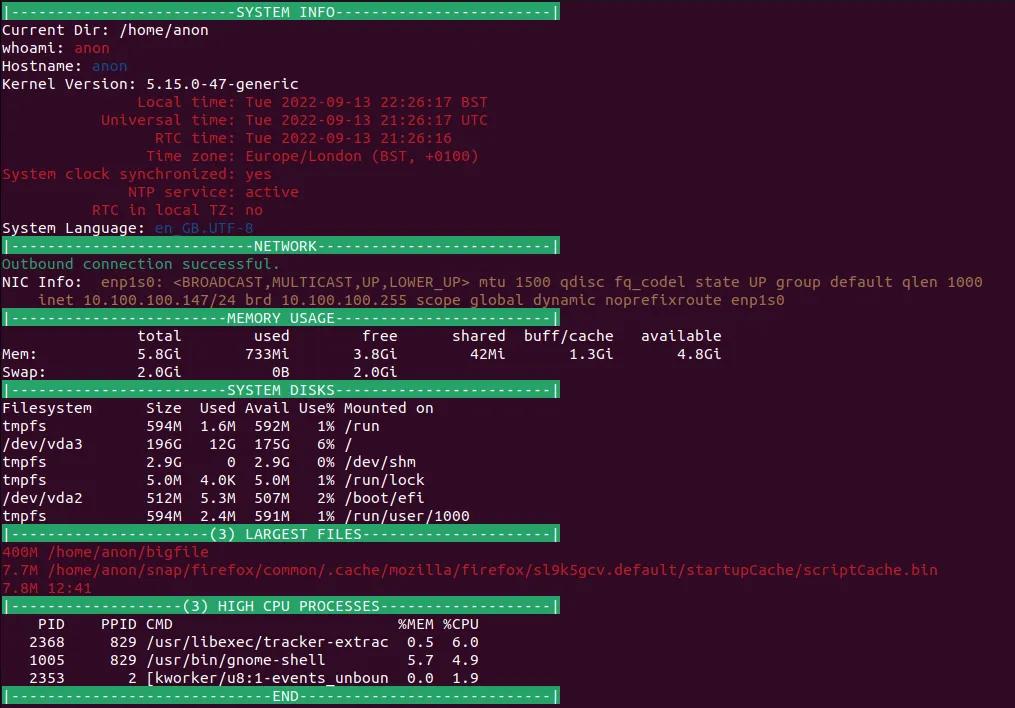
For example, a report might look like this:
========================================
BASIC SYSTEM INFORMATION REPORT
========================================
Report date: 2026-10-28 10:30:00
Hostname: linux-lab
Current user: student
Operating system: Ubuntu Linux
Kernel version: 6.x.x
Home directory: /home/student
Disk usage for home directory:
Filesystem Size Used Avail Use% Mounted on
/dev/example 50G 20G 30G 40% /
========================================
END OF REPORT
========================================
This is an illustrative example, not the expected output from every Linux computer. Your actual hostname, username, operating system, kernel version, date, and disk information will depend on your environment.
A report is only as useful as the information it collects. It is important to understand what each command measures and what the results do—and do not—tell you.
-
Understanding the Commands Used in This Lesson
Before writing the script, let’s examine the commands that will provide the information.
A. The hostname command
The hostname command displays the system’s hostname.
Run:
hostname
A computer might return:
linux-lab
The hostname is a label used to identify a computer on a network or within an environment. It is not necessarily a unique or verified identity.
B. The date command
The date command displays the current date and time according to the system clock.
Run:
date
To display a consistent, readable format, use:
date ‘+%Y-%m-%d %H:%M:%S’
The format represents the year, month, day, hour, minute, and second.
The reported time depends on the system clock and its configuration.
C. The uname command
The uname command displays information about the operating system environment.
To obtain the kernel name and version, use:
uname -s
uname -r
- uname -s displays the kernel name.
- uname -r displays the kernel release.
On a typical Linux system, the first command returns Linux.
The kernel version is useful for documenting the environment, but it does not by itself establish whether the system is fully patched or secure.
D. The /etc/os-release file
Many Linux distributions provide an /etc/os-release file containing operating system identification details.
To view it, run:
cat /etc/os-release
It may include fields such as the distribution name, version, and a human-readable name.
For this lesson, the script will read the PRETTY_NAME field rather than execute the file as shell code. This is a useful defensive habit when you only need to read configuration data.
The file may be absent or differ on some systems, so a robust script should have a fallback message.
E. The whoami command
Run:
whoami
This displays the effective username associated with the current process.
It is useful for documenting which account ran the report. It does not prove that the account is authorised to perform every possible task.
F. The df command
The df command reports filesystem space usage.
For example:
df -h “$HOME”
The -h option requests human-readable size units. The command reports usage for the filesystem containing the home directory.
This is a read-only information command. It does not free space, remove files, or change the filesystem.
Disk usage information can help identify storage constraints, but it does not tell you whether files are safe, legitimate, or free of malware.
-
Understanding Variables and Command Substitution
In Lesson 18, you learned that a Bash variable stores a value for later use.
For example:
host_name=$(hostname)
This uses command substitution to run hostname and store its standard output in the host_name variable.
You can then print the value:
printf ‘Hostname: %s\n’ “$host_name”
The output might be:
Hostname: linux-lab
Here is another example:
current_date=$(date ‘+%Y-%m-%d %H:%M:%S’)
current_user=$(whoami)
kernel_version=$(uname -r)
Each command runs once, and its output is stored in a variable.
This makes the report easier to organise because you can collect the information first and then display it in a consistent format.
Why quote variables?
When using variables that contain text or paths, quote their expansions:
printf ‘Home directory: %s\n’ “$HOME”
Quoting helps preserve spaces and prevents unintended word splitting and pathname expansion.
A note about command failures
Command substitution captures standard output, but it does not automatically guarantee that the command succeeded.
A defensive script should check whether an important command completed successfully before treating its result as reliable.
For example:
if host_name=$(hostname); then
printf ‘Hostname: %s\n’ “$host_name”
else
printf ‘Hostname: unavailable\n’
fi
This uses the command’s exit status to choose the appropriate branch.
-
Formatting a Report with printf
A system report should be easy to read.
Bash’s printf command gives you control over the output.
For example:
printf ‘========================================\n’
printf ‘BASIC SYSTEM INFORMATION REPORT\n’
printf ‘========================================\n’
To print a variable, use a format specifier:
host_name=$(hostname)
printf ‘Hostname: %s\n’ “$host_name”
In this example:
- Hostname: is a descriptive label.
- %s represents a string value.
- “$host_name” supplies the value.
- \n adds a newline.
You can also print several fields together:
printf ‘Hostname: %s\nUser: %s\nKernel: %s\n’ \
“$host_name” “$current_user” “$kernel_version”
The backslash at the end of a line continues the command onto the next line. It must be the last character on that line; trailing spaces after it can cause problems.
Clear formatting makes reports easier to inspect, compare, and share with authorised colleagues.
-
Checking Conditions and Handling Missing Information
A reliable script should anticipate that some information may not be available.
For example, the hostname command might not be installed in an unusual minimal environment, or the operating system identification file might be missing.
Bash lets you check for these situations.
Checking whether a command is available
Use command -v:
if command -v hostname >/dev/null 2>&1; then
echo “The hostname command is available.”
else
echo “The hostname command is unavailable.”
fi
The command checks whether Bash can find the requested command.
The redirections suppress its normal output and error messages for this availability test.
Checking whether a file exists
Use a conditional expression:
if [[ -r /etc/os-release ]]; then
echo “The OS identification file is readable.”
else
echo “The OS identification file is unavailable or unreadable.”
fi
The -r test checks whether the path is readable by the current process.
This does not establish that the file contains every field the script needs. The script should still handle missing or unexpected values.
Using fallback values
A report can use a clear fallback message instead of leaving a field blank:
os_name=”Unavailable”
if [[ -r /etc/os-release ]]; then
os_name=$(grep ‘^PRETTY_NAME=’ /etc/os-release | head -n 1 | cut -d= -f2- | sed ‘s/^”//; s/”$//’)
if [[ -z “$os_name” ]]; then
os_name=”Not specified”
fi
fi
This example reads the PRETTY_NAME field and removes its surrounding double quotes. It assumes the common /etc/os-release format. For more complicated parsing requirements, use a parser designed for that data format.
The important principle is that missing information should be reported clearly rather than silently treated as a valid result.
-
Understanding Exit Statuses
A command returns an exit status when it finishes.
In common Unix and Linux conventions:
- 0 usually means success.
- A non-zero value indicates failure or another reported condition.
Bash stores the most recent command’s exit status in $?.
For example:
true
printf ‘Exit status: %s\n’ “$?”
The status should be 0.
However, checking $? after several other commands may give you the status of the wrong command. Capture or test the result immediately.
For many commands, an if statement is clearer:
if kernel_version=$(uname -r); then
printf ‘Kernel version: %s\n’ “$kernel_version”
else
printf ‘Kernel version: unavailable\n’
fi
This allows the script to display a fallback message if the command fails.
Why exit statuses matter in reporting
If a script reports that information is unavailable, you should be able to distinguish that situation from a successful information check.
An exit status is useful evidence about the command’s execution, but it does not prove that the information is complete or that the system is secure.
-
Writing a System Information Report Script
Now let’s combine the concepts into a single script.
The script will:
- Collect local system information using read-only commands.
- Check important command results.
- Use fallback values for unavailable information.
- Format the report into readable sections.
- Save the report in a dedicated practice directory.
- Display the report path.
- Return a non-zero status if it cannot write the report.
The script does not require administrator privileges.
The complete script
Save the following as system-report.sh in your practice directory:
#!/usr/bin/env bash
# Basic system information report
# Use only on an authorised local system.
set -u
umask 077
report_dir=”$HOME/bash-practice/reports”
# Create the report directory if it does not exist.
if ! mkdir -p “$report_dir”; then
printf ‘Error: could not create report directory.\n’ >&2
exit 1
fi
# Collect the report date.
if report_date=$(date ‘+%Y-%m-%d %H:%M:%S’); then
:
else
report_date=”Unavailable”
fi
# Collect the hostname.
if command -v hostname >/dev/null 2>&1 &&
host_name=$(hostname); then
:
else
host_name=”Unavailable”
fi
# Collect the current effective username.
if current_user=$(whoami); then
:
else
current_user=”Unavailable”
fi
# Collect the kernel name and version.
if kernel_name=$(uname -s) && kernel_version=$(uname -r); then
:
else
kernel_name=”Unavailable”
kernel_version=”Unavailable”
fi
# Read the Linux distribution name without sourcing the file.
os_name=”Unavailable”
if [[ -r /etc/os-release ]]; then
if os_name=$(grep ‘^PRETTY_NAME=’ /etc/os-release |
head -n 1 | cut -d= -f2- | sed ‘s/^”//; s/”$//’) &&
[[ -n “$os_name” ]]; then
:
else
os_name=”Not specified”
fi
fi
# Collect disk usage for the filesystem containing HOME.
if disk_info=$(df -h “$HOME” 2>/dev/null); then
:
else
disk_info=”Disk usage information unavailable.”
fi
# Build a timestamped report filename.
timestamp=$(date ‘+%Y%m%d-%H%M%S’) || {
printf ‘Error: could not generate a report timestamp.\n’ >&2
exit 1
}
report_file=”$report_dir/system-report-$timestamp.txt”
# Do not overwrite an existing report.
if [[ -e “$report_file” ]]; then
printf ‘Error: report file already exists: %s\n’ “$report_file” >&2
exit 1
fi
# Write the report.
if {
printf ‘%s\n’ ‘========================================’
printf ‘%s\n’ ‘BASIC SYSTEM INFORMATION REPORT’
printf ‘%s\n’ ‘========================================’
printf ‘\n’
printf ‘Report date: %s\n’ “$report_date”
printf ‘Hostname: %s\n’ “$host_name”
printf ‘Current user: %s\n’ “$current_user”
printf ‘Operating system: %s\n’ “$os_name”
printf ‘Kernel name: %s\n’ “$kernel_name”
printf ‘Kernel version: %s\n’ “$kernel_version”
printf ‘Home directory: %s\n’ “$HOME”
printf ‘\n’
printf ‘%s\n’ ‘Disk usage for the home directory filesystem:’
printf ‘%s\n’ “$disk_info”
printf ‘\n’
printf ‘%s\n’ ‘========================================’
printf ‘%s\n’ ‘END OF REPORT’
printf ‘%s\n’ ‘========================================’
} > “$report_file”; then
printf ‘Report created successfully.\n’
printf ‘Report location: %s\n’ “$report_file”
else
printf ‘Error: could not write the report.\n’ >&2
exit 1
fi
exit 0
Understanding the important parts
The shebang
#!/usr/bin/env bash
This identifies Bash as the intended interpreter for direct script execution.
Strict handling of unset variables
set -u
This makes Bash treat an unset variable expansion as an error. It can help expose mistakes, but it is not a complete error-handling system.
Restrictive default permissions for new files
umask 077
This requests restrictive default permissions for newly created files and directories in this process, subject to the permissions requested by each command and the filesystem’s behaviour. It helps reduce accidental exposure of the report to other local users.
The report directory
report_dir=”$HOME/bash-practice/reports”
The report is saved under the current user’s home directory, in a dedicated practice location.
Command checks
The if statements check important command results and use fallback values when necessary.
Reading the OS information
The script reads the PRETTY_NAME field from /etc/os-release; it does not execute the file as a shell script.
Disk usage
The df -h “$HOME” command displays filesystem usage for the location containing the home directory.
The timestamped filename
The script includes a timestamp in the report filename and checks whether that path already exists before writing. This helps prevent accidental overwriting during ordinary use. The check and write are separate operations, so this simple script is not designed for concurrent execution by multiple processes.
Writing the report
The block of printf commands sends the formatted report to the output file. If the redirection or writing operation fails, the script displays an error and exits with a non-zero status.
- Safe Practical Lab: Generate Your First System Report
Lab title: Local System Information Reporting with Bash
Objective: Run the report script on your own authorised Linux environment and inspect the generated text file.
Estimated time: 15–25 minutes.
Required environment: Your own Linux computer, an authorised WSL environment, or a Linux virtual machine you are permitted to use.
Step 1: Create your practice directory
Open a terminal and run:
mkdir -p “$HOME/bash-practice”
cd “$HOME/bash-practice”
pwd
Confirm that the displayed path points to your home directory’s bash-practice folder.
Step 2: Create the script
Open a text editor:
nano system-report.sh
Paste the complete script from Section 7 into the editor.
Save the file and exit.
Step 3: Review the script before running it
Check that the script:
- Uses read-only commands to collect system information.
- Saves its report beneath “$HOME/bash-practice/reports”.
- Does not use sudo.
- Does not scan a network.
- Does not change operating system settings.
- Checks for missing information and reports errors.
- Uses restrictive default permissions for newly created report files.
Never run a script you do not understand simply because it is described as a cybersecurity tool.
Step 4: Run the script
From your practice directory, run:
bash system-report.sh
If it succeeds, the script should display a success message and the path of the generated report.
The actual system information will depend on your computer or virtual machine.
Step 5: Read the report
Use the path displayed by the script. On a typical Linux setup, you can list the report directory with:
ls -l “$HOME/bash-practice/reports”
Then display the report using its actual filename:
cat “$HOME/bash-practice/reports/your-report-filename.txt”
Replace your-report-filename.txt with the filename shown by the listing. Do not type that placeholder literally unless you have named a file that way.
The cat command here only displays the report’s contents.
Step 6: Check the script’s exit status
Immediately after running the script, use:
echo “$?”
A status of 0 indicates that the script reported successful completion. A non-zero status indicates that the script reported a failure.
If the script fails, read the error message and check the relevant directory, file permissions, and commands before trying again.
Step 7: Verify the information independently
Compare the report with the results of these commands:
hostname
date
uname -s
uname -r
whoami
df -h “$HOME”
The values should generally correspond to the information gathered by the script. The date and time may differ slightly because they are collected at different moments.
Step 8: Lab review questions
Answer these questions in your notes:
- Which command supplied the hostname?
- Which command supplied the kernel version?
- Why does the script use fallback messages?
- Why is the report stored in a dedicated practice directory?
- What should you do if the script returns a non-zero exit status?
Lab completion criteria
You have completed the lab when you can:
- Create and run the Bash script.
- Explain where the report is saved.
- Identify the commands used to collect each field.
- Read and interpret the generated report.
- Explain how command failures are handled.
- Confirm the script’s exit status.
- Describe why a system information report is useful but does not prove that a system is secure.
-
Defensive Reporting Practices
System information can reveal details about a computer’s configuration. Even a basic report may disclose usernames, hostnames, operating system versions, and storage information.
Follow these practices:
- Keep reports in a controlled location. Use a dedicated directory and avoid saving reports into shared locations without a reason.
- Use least privilege. Do not run basic information-gathering scripts as an administrator unless there is a specific, justified requirement.
- Avoid collecting unnecessary data. Gather only the information needed for your task.
- Protect report files. Restrictive file permissions can help prevent accidental exposure to other local users.
- Review scripts before execution. Understand every command and redirection.
- Handle missing data honestly. Use clear fallback messages instead of silently presenting incomplete results as complete.
- Check exit statuses. Distinguish successful execution from reported failure.
- Treat reports as potentially sensitive. Share them only with appropriate, authorised recipients.
- Do not overstate the findings. A report of a kernel version or disk usage is not a vulnerability assessment.
- Stay within your authorisation. Collect information only from systems you are permitted to inspect.
PREVIOUS LESSON | NEXT LESSON