Malware Explained: Viruses, Trojans and Ransomware
Student Vocation Cybersecurity Learning Series — Lesson 5 of 30
Imagine opening your computer one morning and discovering that it is behaving strangely. Applications keep crashing, unfamiliar programs appear, or your files suddenly become inaccessible.
Could malware be responsible?
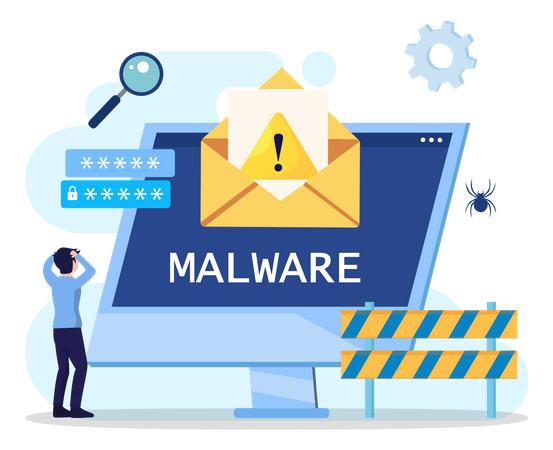
Malware is one of the most common topics in cybersecurity because malicious software can threaten personal information, business operations, and the security of digital devices.
But not all malware works in the same way. Computer viruses, worms, trojans, spyware, and ransomware are different categories of malicious software, each with its own characteristics.
In this beginner-friendly lesson, you will learn what malware means, how the main types differ, how infections can occur, which warning signs to recognize, and how to reduce your risk.
You will also complete a safe malware-awareness exercise without downloading or running any malicious software.
-
What Is Malware?
Malware is short for malicious software.
It refers to software or code designed to perform harmful, unauthorized, or abusive actions on a device or computer system.
Depending on its purpose, malware may attempt to steal information, spy on activity, damage data, disrupt services, or prevent users from accessing their files.
Malware can affect:
- Desktop and laptop computers.
- Smartphones and tablets.
- Business servers.
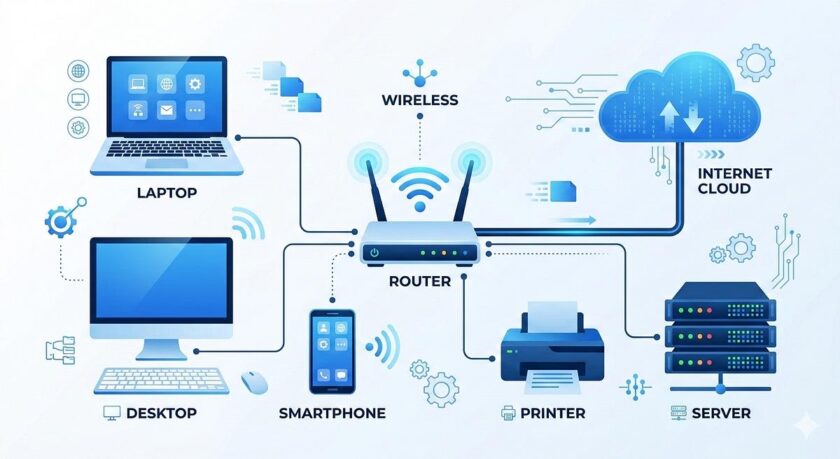
- Network-connected devices.
- Cloud environments and other digital systems.
Some malware operates mainly on one device, while other forms can spread between systems.
A simple example
Imagine that a student downloads an application from an untrusted website. The application appears to be a useful study tool, but it secretly attempts to collect personal information without permission.
If the application performs malicious actions, it may be classified as malware.
This example illustrates why the source of a download matters. An application that looks useful or has an attractive design is not necessarily safe.
-
What Is a Computer Virus?
A computer virus is a type of malware that inserts or attaches its code to another file or program and can spread when the infected host is executed or used.
Many traditional viruses rely on a user or process opening an infected file or running an infected program before they can spread or activate.
Example of a virus
Imagine that a malicious program infects an executable file on a computer. If an infected copy of that file is transferred to another system and executed, the virus may spread under suitable conditions.
The exact behavior depends on the particular virus and the environment.
Common characteristics of viruses
- They are associated with infected host files or programs.
- They may spread when infected content is executed or shared.
- They can damage or alter files.
- Some can interfere with normal system operations.
- They may be designed to perform additional malicious actions.
Not every computer problem is caused by a virus. Hardware faults, software bugs, configuration errors, and other issues can also cause problems.
-
What Is a Computer Worm?
A worm is a type of malware that can replicate and spread between systems without necessarily attaching itself to a host file in the way a traditional virus does.
Some worms spread by exploiting vulnerable network services or taking advantage of other weaknesses.
Example of a worm
Imagine that several computers on a business network are running vulnerable software. A worm may exploit that weakness and spread to other vulnerable systems, potentially disrupting the network.
This is one reason organizations need to keep software updated and restrict unnecessary network access.
Virus vs worm
A traditional virus is associated with a host file or program, whereas a worm is designed to replicate and spread as a separate program or process.
Both are forms of malware, and both can cause damage.
-
What Is a Trojan Horse?
A trojan, or trojan horse, is malware that disguises itself as something legitimate or useful to encourage someone to install or execute it.
Unlike a traditional virus, a trojan does not need to attach itself to a host file to fit the usual definition. Unlike a worm, it is not defined by its ability to self-replicate and spread automatically.
Example of a trojan
Imagine finding a free application advertised as a premium photo editor. The application appears genuine, but it also contains hidden functionality that compromises the device.
If the hidden functionality performs malicious actions, the application may be a trojan.
Why trojans are dangerous
Trojans may be designed to:
- Steal information.
- Install additional unwanted software.
- Provide unauthorized access.
- Spy on activity.
- Download other malware.
- Change system settings.
The important lesson is that a program can appear legitimate while concealing harmful functionality.
Download software from trusted sources and be cautious about applications that request unnecessary permissions.
-
What Is Ransomware?
Ransomware is a type of malware that attempts to extort victims, often by encrypting files or otherwise preventing access to systems or information.
Some ransomware operations also threaten to publish stolen data.
Example of ransomware
Imagine that a small business stores invoices, customer records, and important documents on its computers.
A ransomware incident makes those files inaccessible and displays a demand for payment.
The business may be unable to serve customers or complete important tasks while the incident is being handled.
This example demonstrates why ransomware can affect more than computers: it can disrupt an entire organization’s operations.
How can organizations reduce ransomware risk?
Organizations should:
- Maintain regular backups.
- Keep operating systems and applications updated.
- Use appropriate endpoint security.
- Apply least-privilege access controls.
- Train employees to recognize suspicious messages and downloads.
- Restrict unnecessary access between systems.
- Prepare an incident response and recovery plan.
Backups should be protected against unauthorized alteration or deletion and tested regularly. A backup that cannot be restored when needed may not provide the expected protection.
Should victims automatically pay a ransom?
No. Paying does not guarantee that files will be restored or that stolen information will be deleted.
If a ransomware incident occurs, affected individuals or organizations should prioritize containment, preserve relevant evidence, seek qualified incident-response assistance, and follow applicable reporting requirements.
-
What Is Spyware?
Spyware is software that secretly collects information about a user’s activities or device without appropriate knowledge or authorization.
Depending on its capabilities, spyware may collect browsing information, monitor activity, or obtain sensitive data.
Example of spyware
Imagine a mobile application that secretly collects more personal information than its legitimate functions require and transmits that information to an unauthorized party.
Such behavior may indicate spyware or another form of privacy-invasive software.
How can you reduce spyware risks?
- Review application permissions.
- Install applications from trusted sources.
- Remove applications you no longer need.
- Keep your device and applications updated.
- Use reputable security tools.
- Investigate unexpected permission requests.
Some legitimate applications collect information for disclosed purposes. The concern is unauthorized, deceptive, or malicious collection.
-
What Is an Adware Program?
Adware is software that displays advertising. Not all adware is malicious, but some unwanted or malicious advertising software can disrupt users, track activity improperly, or expose them to deceptive content.
Example
Imagine a free application that repeatedly opens unwanted advertisements or changes your browser’s settings without clear permission.
That behavior may indicate unwanted software or malicious adware.
To reduce this risk, install applications from trusted sources, review installation options, and avoid accepting unfamiliar add-ons without understanding what they do.
-
What Is a Rootkit?
A rootkit is a collection of techniques or software components designed to conceal activity or maintain unauthorized access to a system.
Some rootkits operate with high privileges and can make malicious activity harder to detect.
Example
A compromised computer may contain a component that attempts to hide malicious files or processes from ordinary system inspection.
Rootkits can be difficult to detect because their purpose may include concealing evidence of compromise.
Defending against them may require trusted security tools, careful investigation, and in serious cases, professional incident response or system rebuilding.
- Comparison of Common Malware Types
| Malware type | Main characteristic | Simple example |
| Virus | Attaches to host files or programs and can spread through them | An infected executable |
| Worm | Replicates and spreads between systems | Malware spreading through vulnerable network services |
| Trojan | Disguises malicious functionality as legitimate software | A fake utility containing hidden malicious features |
| Ransomware | Attempts to extort victims by restricting access to systems or data | Files become inaccessible during an attack |
| Spyware | Secretly collects information or monitors activity | Unauthorized collection of private activity |
| Adware | Displays advertising; some variants behave deceptively or maliciously | Software producing unwanted advertisements |
| Rootkit | Conceals activity or helps maintain unauthorized access | A component hiding malicious processes |
These categories can overlap. For example, a trojan may install spyware or ransomware, and a larger attack may involve several types of malware.
-
How Does Malware Reach a Device?
Malware can reach devices through several routes.
Unsafe downloads
Software from untrusted websites or unauthorized download sources may contain malicious functionality.
Email attachments
An unexpected attachment may contain a malicious file or lead to a harmful download.
Deceptive links
A link may lead to a fraudulent website that attempts to persuade the visitor to download unsafe software or disclose information.
Unpatched software
Some malware exploits known weaknesses in operating systems, applications, or network services that have not been updated.
Compromised accounts
An attacker who gains unauthorized access to an account may misuse it to distribute malicious content or gain access to additional systems.
Infected removable media
Removable storage devices may carry malicious files. Connecting unfamiliar devices to a computer can introduce avoidable risks.
These examples show why malware prevention requires a combination of user awareness, secure configuration, updates, access controls, and protective tools.
-
Warning Signs That May Indicate Malware
No single symptom proves that a device is infected. However, unexpected changes may justify further investigation.
Potential warning signs include:
- Unfamiliar applications or browser extensions.
- Repeated security alerts.
- Unexpected changes to browser settings.
- Unusual account activity.
- Frequent crashes or abnormal behavior.
- Unexpected network activity.
- Files becoming inaccessible without a clear explanation.
- Security software being disabled unexpectedly.
There may be harmless explanations for some of these symptoms, including software bugs, insufficient storage, or hardware problems.
Avoid assuming that every slow computer contains malware. Use a systematic approach to investigate unusual behavior.
-
How to Protect Your Devices from Malware
You can reduce malware risk by adopting several good security habits.
- Download software from trusted sources. Use official websites and reputable application stores wherever possible.
- Keep software updated. Security updates help address known vulnerabilities.
- Use reputable security protection. Keep built-in or trusted endpoint security features enabled and updated.
- Be careful with unexpected attachments. Verify the sender and the reason for the attachment before opening it.
- Use strong authentication. Unique passwords and multi-factor authentication help protect accounts that might otherwise be misused.
- Back up important data. Maintain protected backups and periodically test recovery.
- Limit administrative privileges. Use an ordinary account for everyday tasks when practical, and reserve administrative access for tasks that require it.
- Review application permissions. Avoid granting unnecessary access to files, cameras, microphones, and other sensitive resources.
- Secure your network. Keep routers updated and restrict unnecessary network services.
- Learn to recognize suspicious behavior. Security awareness helps you avoid deceptive downloads and messages.
No protection method is perfect. Combining these measures provides a stronger defense than relying on any single tool.
-
What Should You Do If You Suspect a Malware Infection?
If you suspect that your device may be infected, avoid making the situation worse.
- Stop opening suspicious files or interacting with unexpected prompts.
- Follow your organization’s security procedures if the device belongs to a school or workplace.
- If an active compromise is suspected, disconnect the affected device from networks when appropriate and safe to do so.
- Use trusted security software to assess the device.
- From a separate, trusted device, protect important accounts if credentials may have been exposed.
- Seek qualified technical support for serious incidents.
- Restore data from known-good backups when appropriate.
- Install updates and address the underlying weakness before returning the device to normal use.
For a work or school device, consult the responsible IT or security team before taking actions that might destroy evidence or interfere with an investigation.
Never assume that paying a criminal or deleting one suspicious file will resolve every aspect of an incident.
-
Safe Practical Activity: Malware Awareness Without Running Malware
You can learn to recognize malware risks without downloading or executing any harmful software.
What you need
- Your own computer or smartphone.
- Access to your installed applications and security settings.
- A notebook or digital document.
Step 1: Review installed applications
Open your device’s application list or installed-programs settings.
Look for applications you do not recognize or no longer need.
Do not delete unfamiliar software blindly; some legitimate system components may have unfamiliar names. Research the application or ask a trusted technical professional if you are uncertain.
Step 2: Review application permissions
On your phone, review which applications can access sensitive features such as the camera, microphone, location, and contacts.
On your computer, review relevant application permissions and security settings.
Identify permissions that appear unnecessary for an application’s purpose.
Step 3: Check security protection
Confirm that your device’s built-in or trusted security protection is enabled.
Review whether security definitions and software updates are current.
Do not disable protection to test a suspicious file.
Step 4: Review update status
Check for available updates to your operating system, browser, and commonly used applications.
Install updates from trusted sources according to your device’s normal update process.
Step 5: Review backup arrangements
Identify whether your important documents are backed up.
Consider whether the backup is protected from unauthorized deletion and whether you know how to restore files.
Step 6: Complete your checklist
| Security check | Status | Action needed |
| Installed applications reviewed | ||
| Application permissions reviewed | ||
| Security protection enabled | ||
| Updates checked | ||
| Important files backed up | ||
| Recovery process understood |
Reflection questions
- Why is downloading software from trusted sources important?
- What is the difference between a virus and a trojan?
- Why can backups help during a ransomware incident?
- Why should you avoid deleting unfamiliar system components without checking them?
Expected result: You should finish with a better understanding of malware warning signs and a practical list of improvements to your device’s security.
This exercise does not require downloading, creating, or running malware.